Trust a server the first time
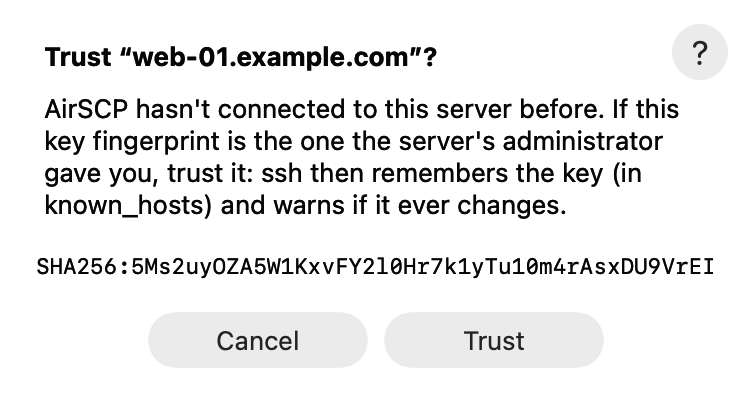
The first time you connect to a server, AirSCP shows the server’s key fingerprint and asks Trust “…”?. This protects you: if someone pretends to be your server later, its key won’t match, and ssh stops.
Steps
- Connect to the server.
- Compare the fingerprint (it starts with
SHA256:) with the one your server admin or hosting company gave you. - If it matches, click Trust. ssh remembers the key (in
known_hosts) and doesn’t ask again. - If you don’t know, or it doesn’t match, click Cancel.
When the key has changed
If a server’s key is different from the one ssh remembered, AirSCP explains the risk and does not connect. This happens when a server is reinstalled, or when someone is in the middle of your connection. Ask the server’s admin. If the change is expected, AirSCP offers to remove the old key and connect again.
Tips
- A test machine or a lab you can’t check? In the host’s settings, Advanced ▸ Server key can trust new servers automatically. A changed key is still refused. See Self-signed certificates and corporate networks.
- Jump hosts ask too: you trust each server once.
If something goes wrong
- “The server’s host key was not accepted, so AirSCP didn’t connect”: you clicked Cancel. Connect again and click Trust if the fingerprint is the one you expect.