Browse a server’s folders
Move around a server’s folders like in Finder.
Steps
- Open a folder: double-click it, or select it and press ⌘↓ (Go ▸ Open Selection).
- Go up: the ↑ button, or ⌘↑ (Go ▸ Enclosing Folder).
- Back and forward: the arrow buttons, or ⌘[ and ⌘].
- Home folder: the house button, or ⇧⌘H.
- Type a path: ⇧⌘G (Go ▸ Go to Folder…).
~means your home folder. - Click a folder in the path bar under the buttons to jump there.
- Filter: type in Filter by name (or press ⌘F) to show only matching names.
- Hidden files: the eye button, or ⇧⌘., shows names that start with a dot.
- Refresh: the circle arrow, or ⌘R.
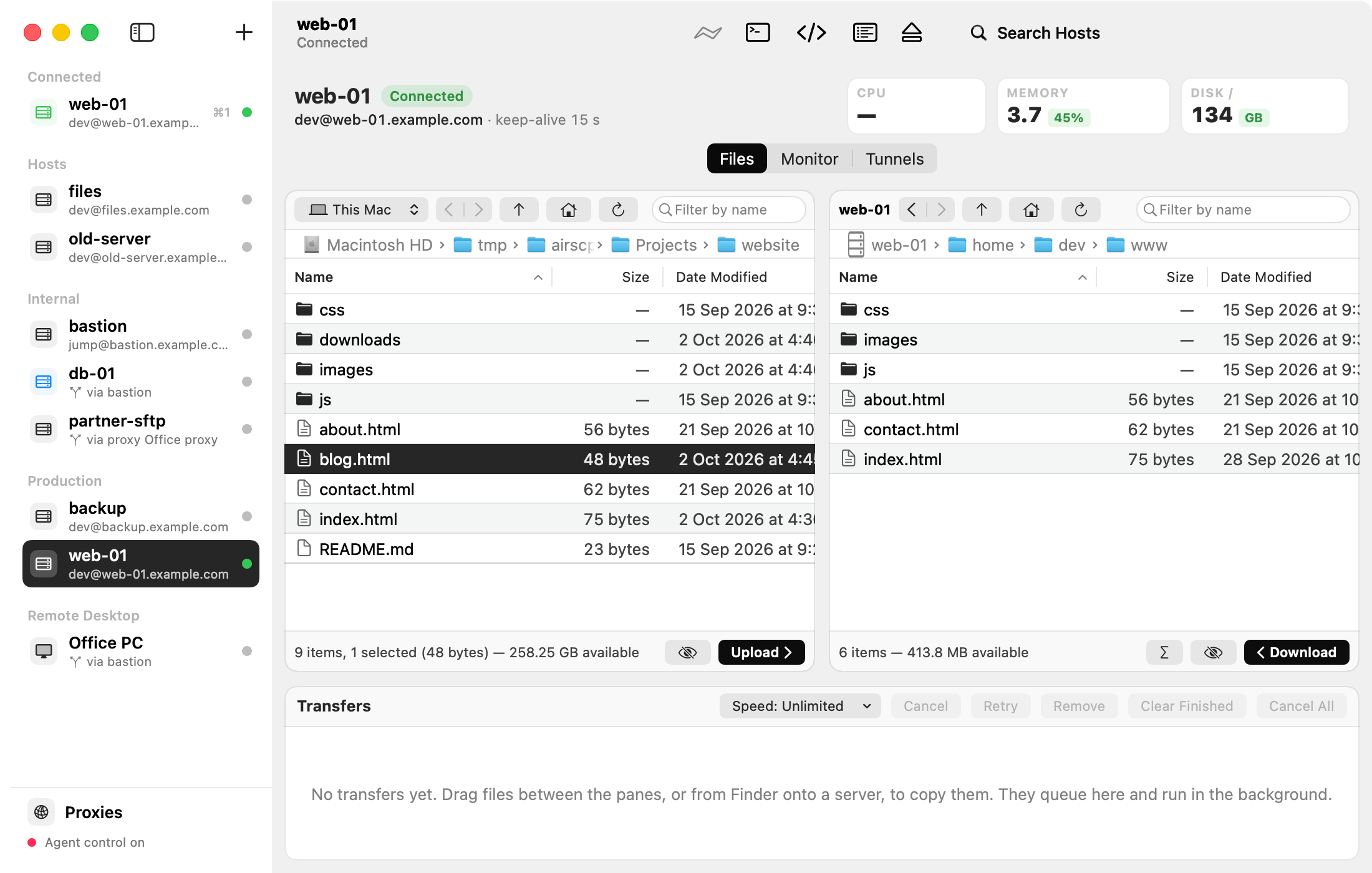
Columns and sorting
- Click a column heading to sort by it. Click again to reverse.
- Right-click the headings (or View ▸ Columns) to show or hide columns: size, date modified, permissions, owner, group and kind.
- Folders show “—” as their size. View ▸ Calculate Folder Sizes (the Σ button) works them out. Settings can do it always.
Favourites
- Go ▸ Add to Favourites keeps the server folder you see, for that host.
- Go ▸ Favourites lists them: choose one to go there, or Remove one.
Tips
- The status line under each pane shows the number of items, your selection and its size, and the free space.
- A folder your account can’t read shows an error, not an empty list.
- Large folders list fast: 50,000 items in about a second on most Linux servers.