Settings and appearance
Choose light or dark mode, your terminal app, your downloads folder and a few defaults. Open AirSCP ▸ Settings… (⌘,). Every change applies at once.
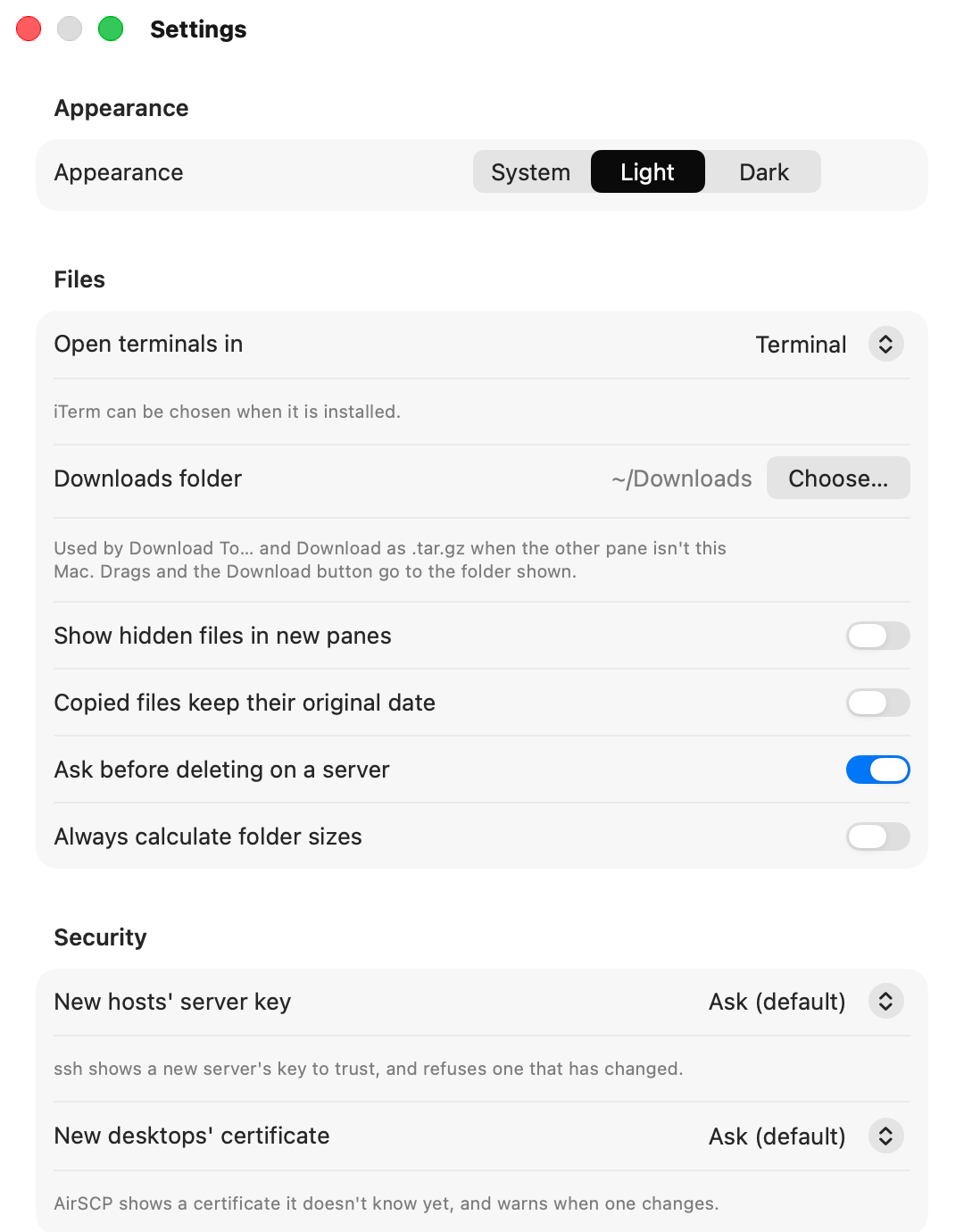
Appearance
System (the default) follows your Mac’s light or dark mode. Light or Dark keeps AirSCP in one of them.
- Light is the Paper look: white panes on a grey background, and black for the selected row, the active tab and the main buttons.
- Dark is the Night Harbor look: a deep blue-grey, with a colour for each kind of thing (servers blue, Remote Desktop purple, proxies orange) and glowing dots for connected servers.
Your Mac’s accent colour, Increase contrast and Reduce transparency (System Settings ▸ Accessibility ▸ Display) still apply. With Increase contrast on, the dark look drops its blue tint.
Files
| Setting | What it does |
|---|---|
| Open terminals in | Terminal (default) or iTerm, for Open Terminal, Run in Terminal and Kill with sudo. |
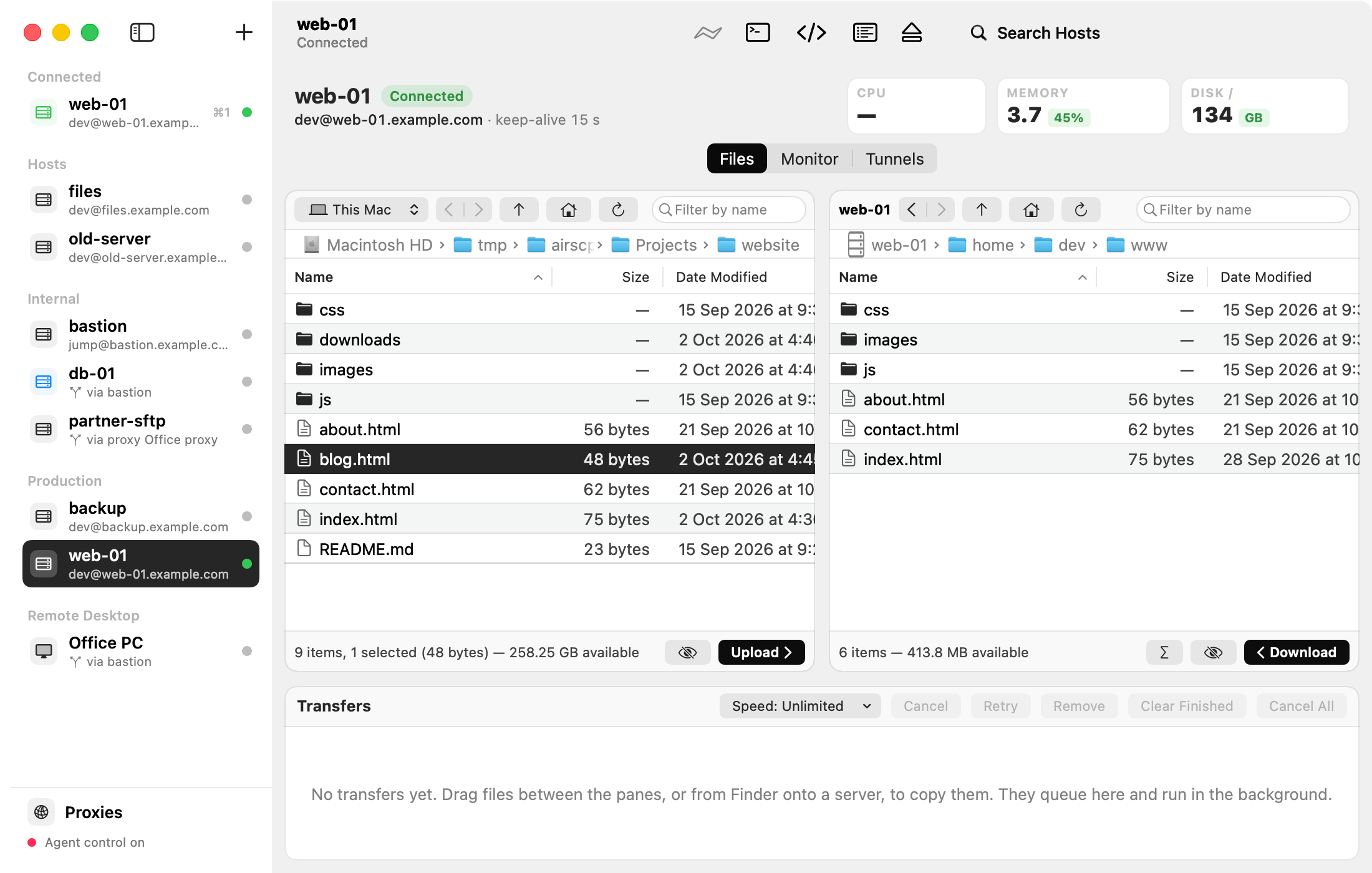
| Downloads folder | Where Download To… starts, and where Download as .tar.gz puts the archive when the other pane isn’t this Mac. Drags and the Download button go to the folder shown. |
| Show hidden files in new panes | Off by default. Each pane can still switch with ⇧⌘.. |
| Copied files keep their original date | Off by default: copies are dated now. On: they keep the file’s own date (scp -p). |
| Ask before deleting on a server | On by default. |
| Always calculate folder sizes | Off by default: folders show “—” until you click Σ. |
Security
How new hosts check their server’s key, and new desktops their server’s certificate. Ask unless you change it. See Self-signed certificates and corporate networks.
Keys
New keys go in: the folder where New Key Pair and Import Key save keys. ~/.ssh by default, where ssh finds them by itself.
Agents
Allow AI agents to control AirSCP (MCP): off by default. See AI agents (MCP).
Advanced
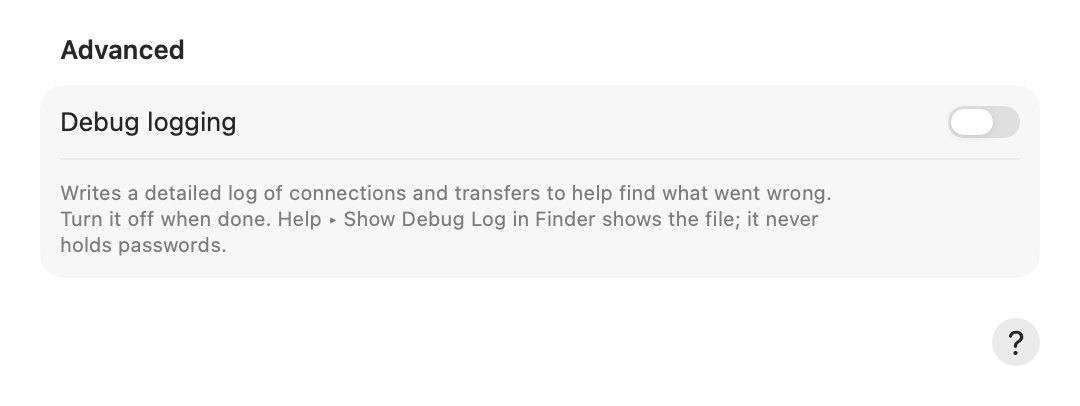
Debug logging: off by default. On, AirSCP writes a detailed log of connections and transfers, to help find what went wrong. Turn it off when done. See Turn on debug logs.
Tips
- The ? button at the bottom of Settings opens this page.