Open and edit a server file
Open a server file in its Mac app, preview it, or edit a text file right in AirSCP.
Steps
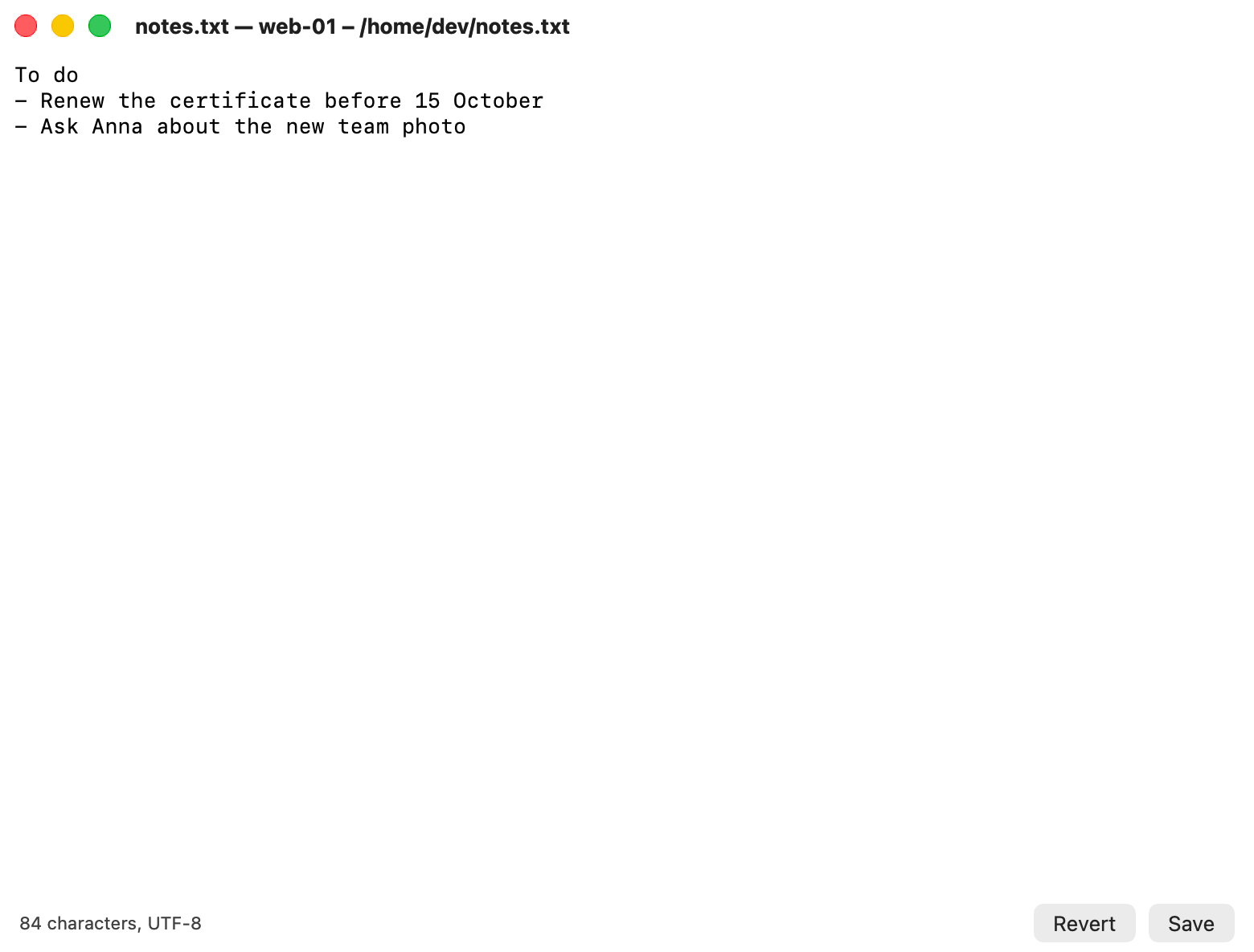
- Edit a text file in AirSCP: select it and choose File ▸ Edit in AirSCP (or right-click it). Change the text and press ⌘S to save it back to the server.
- Open in its app: double-click the file, or choose File ▸ Open (⌘O). AirSCP downloads it and opens it. When you save it in that app, AirSCP offers to upload it again.
- Preview: press Space (Quick Look), for files up to 100 MB.
Tips
- AirSCP’s editor opens plain text files (UTF-8) up to 4 MB.
- Saving is safe: the new text is written next to the file and then renamed over it, so a full disk can’t leave it half written. The file keeps its permissions.
- Closing an editor with unsaved changes asks first.
If something goes wrong
- “The file isn’t plain text (UTF-8), so AirSCP’s editor can’t open it”: use Open to open it in its app.
- “The file is over 4 MB, too large for AirSCP’s editor”: use Open instead.