Make a new key pair
Make a key in a few clicks, without the command line. Then put it on your servers to log in without a password.
Steps
- Choose Window ▸ Keys and click New Key Pair…. (Or, in a host’s settings, choose Log in with ▸ Generate New Key….)
- Leave Type on Ed25519 (recommended): modern, short and fast; every current server takes it.
- Check the Name. AirSCP suggests one that never overwrites a key you have.
- Optional: a Passphrase protects the key if someone copies the file. Tick Remember the passphrase in Keychain so you don’t have to type it.
- Click Generate.
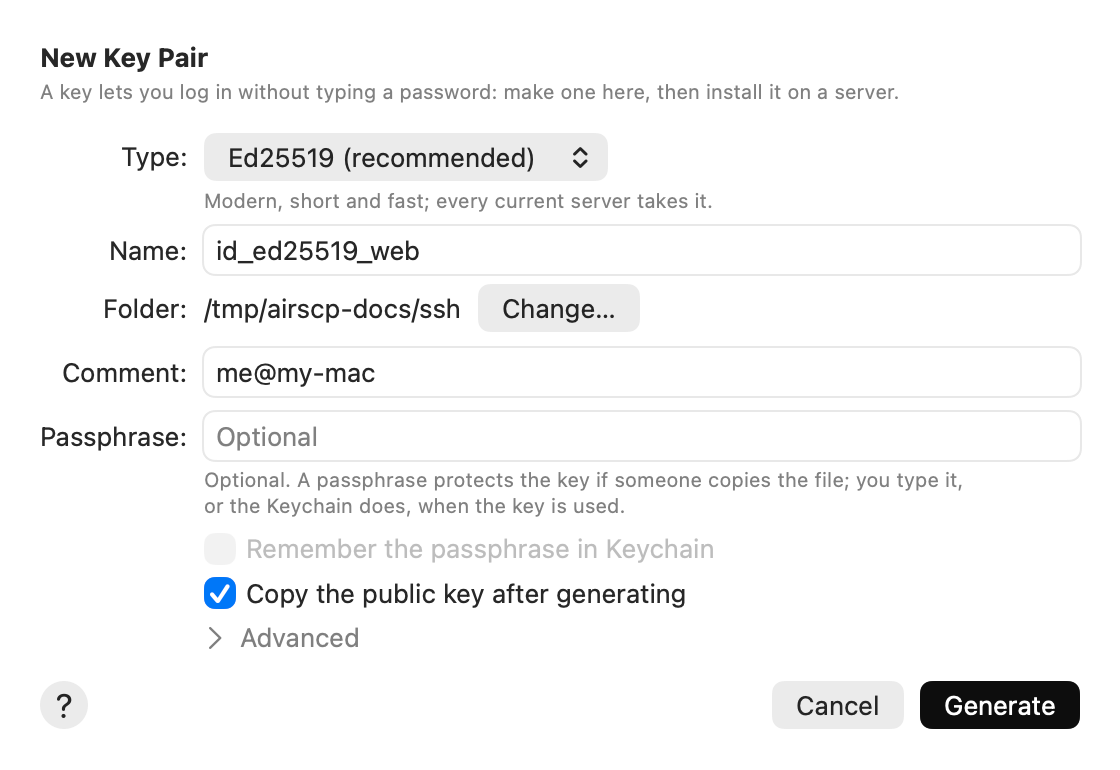
AirSCP shows the new key’s fingerprint and its public key. The public key is already on your clipboard (you can turn that off with Copy the public key after generating).
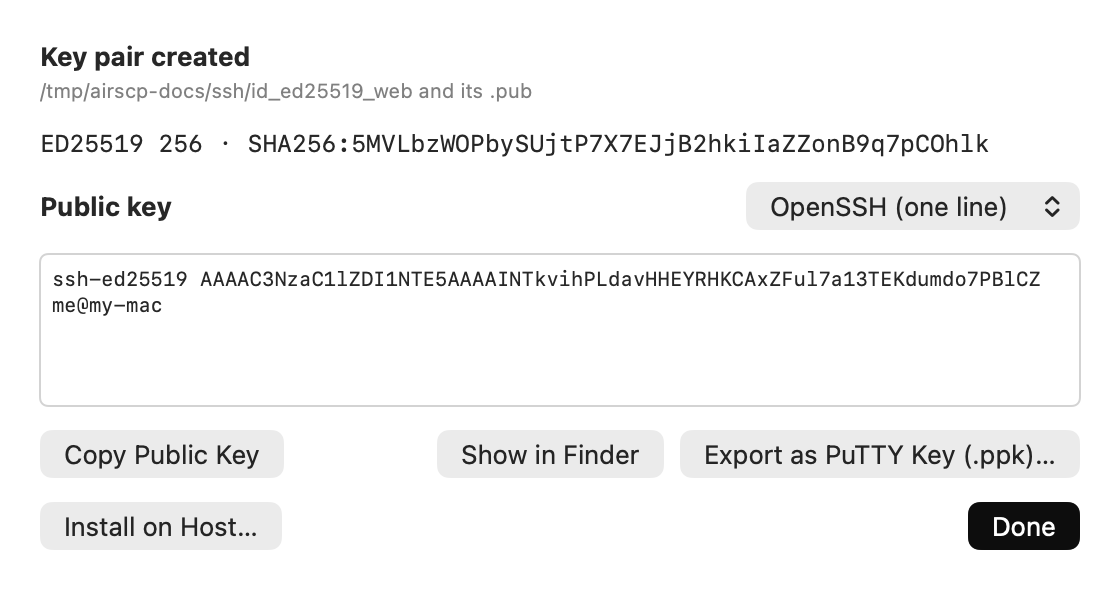
Next: Install on Host… puts the key on a server. See Put your key on a server.
Key types
| Type | When to choose it |
|---|---|
| Ed25519 (recommended) | Almost always. |
| ECDSA 256, 384 or 521 | When a server or policy asks for ECDSA. |
| RSA 2048, 3072 or 4096 | Old servers and network devices. 3072 or more is recommended. |
| Ed25519-SK / ECDSA-SK | A hardware security key such as a YubiKey. Shown only when your Mac’s ssh supports it. |
DSA isn’t offered: it is obsolete, and modern servers refuse it.
Advanced
- Private key format: OpenSSH (default); PEM for older tools; PKCS#8.
- Public key format: OpenSSH (one line) for most servers; SSH2 (RFC 4716) for some commercial servers and network devices; PEM (PKCS#8) for tools that take a standard public key.
Tips
- Change… saves the key in another folder.
- The passphrase goes to ssh-keygen only, never into a command line.
- The ? button in the sheet opens this page.