Copy and paste between Mac and Windows
Text and files go both ways through the clipboard, like on one computer.
Steps
- Text: copy on the Mac, click the Windows desktop, paste with ⌘V. The other way: copy in Windows (⌘C), switch to a Mac app, paste.
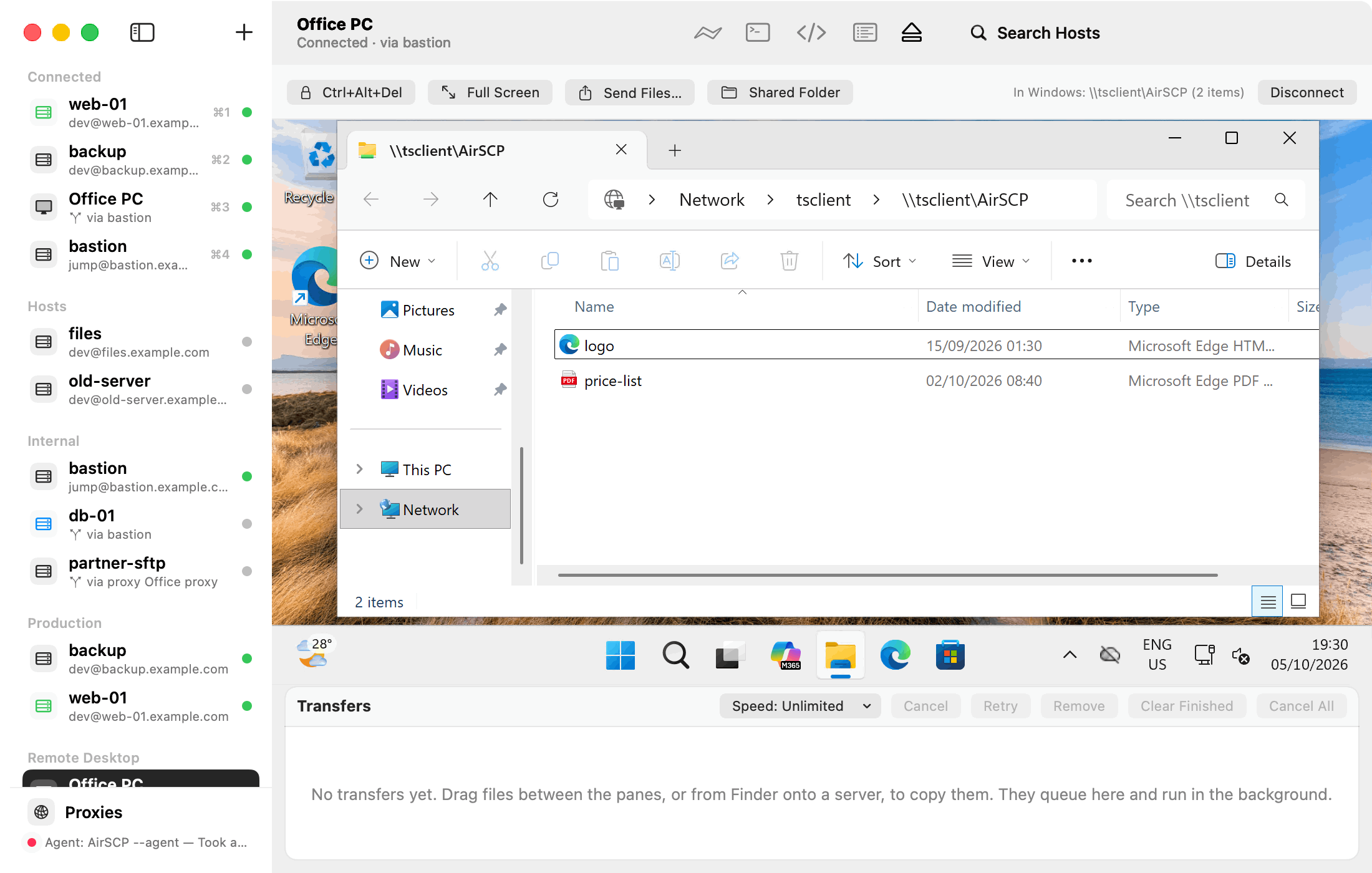
- Files, Mac to Windows: copy files in Finder, then paste them in Windows Explorer.
- Files, Windows to Mac: copy files in Explorer. Then click Paste Items to Mac… in the bar (any size, with progress), or switch to Finder and paste with ⌘V (up to 256 MB).
Tips
- Clipboard sharing is on by default. Turn it off in the desktop’s settings: Share the clipboard (text and files).
- Text over 1 MB isn’t sent to Windows (very large pastes froze Windows sessions in tests). The bar says so.
- Something Windows can’t take, such as an image, isn’t sent.