Connect through an HTTP proxy
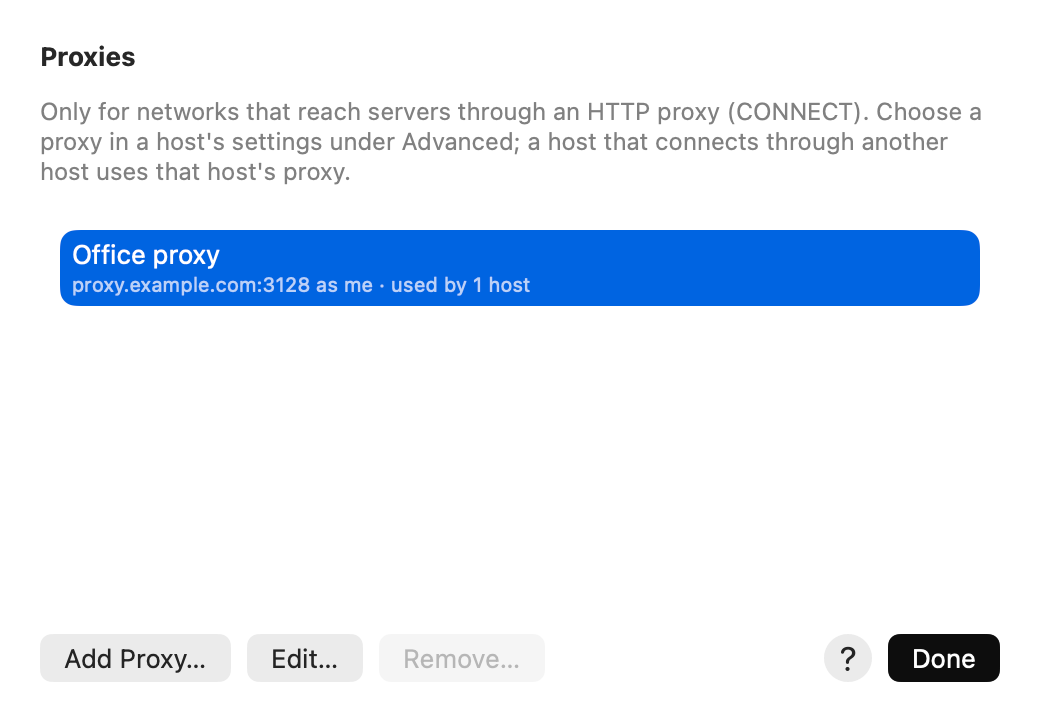
Some company networks reach the internet only through an HTTP proxy. AirSCP can send a host’s connection through such a proxy (HTTP CONNECT), with or without a user name and password. Most people need none.
Steps
- Choose Host ▸ Proxies… (or click Proxies at the bottom of the sidebar).
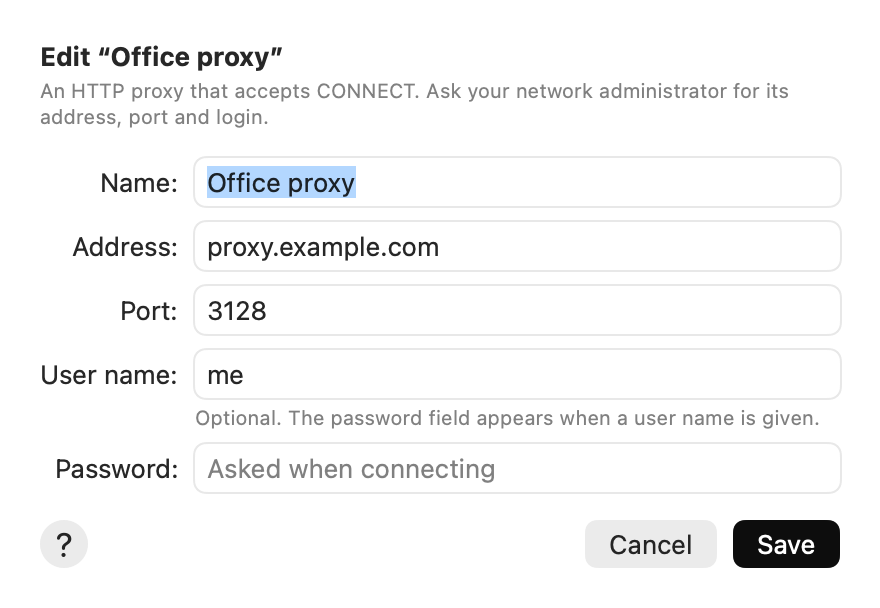
- Click Add Proxy…. Type its Name, Address and Port. Your network admin knows these.
- If the proxy needs a login, type the User name. The password field appears then; leave it empty to be asked.
- Click Add, then Done.
- Edit the host (Host ▸ Edit…), click Advanced, and choose the proxy under HTTP proxy.
Tips
- A host that connects through a jump host uses the jump host’s proxy.
- The sidebar shows via proxy … under a host that goes through a proxy.
- The proxy’s password is kept in your Keychain. A password the proxy refuses is forgotten, so you are asked again.
- A proxy that hosts still use can’t be removed.
If something goes wrong
- “The proxy rejected the user name or password”: edit the proxy and check the user name; connect again to type the password.
- SOCKS proxies aren’t supported, only HTTP proxies that allow CONNECT.