Troubleshooting
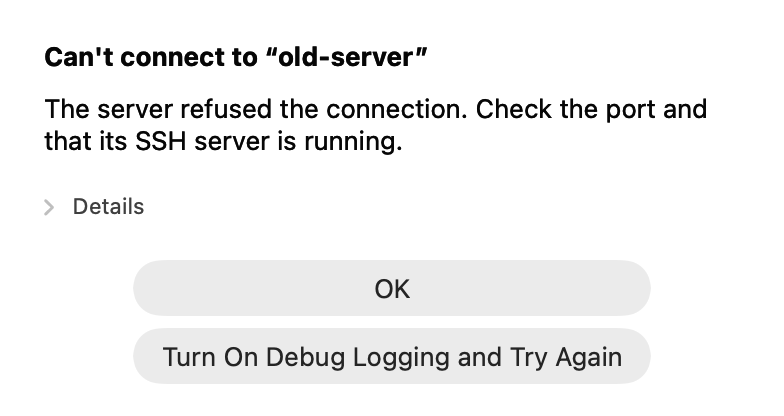
AirSCP explains each error in plain words and says what to do next. Details shows ssh’s own words. Here are the common ones.
Connecting
| Message | What to do |
|---|---|
| The server refused the connection | Check the port, and that the server’s SSH service is running. |
| The server can’t be reached from this network | Check Wi-Fi or VPN. Behind another server? Set Connect through in its settings. |
| The server didn’t accept the user name or password | Check the user name (Host ▸ Edit…), then try the password again. |
| The server didn’t accept the login; it allows: publickey | The server wants a key. Choose one under Log in with, or install one: Window ▸ Keys. |
| Too many authentication failures | Choose one key under Log in with, or add IdentitiesOnly=yes in Extra ssh settings. |
| no matching key exchange / old RSA keys | An old server. Add the matching line from Extra ssh settings. |
| The server’s host key was not accepted | You clicked Cancel at the trust question. Connect again and click Trust if the fingerprint is right. |
| The server’s key has changed | Ask the server’s admin. See Trust a server the first time. |
| The proxy rejected the user name or password | Check the proxy’s user name in Host ▸ Proxies…, then connect again. |
Files and transfers
| Message | What to do |
|---|---|
| This account allows file transfers (sftp) only | Files work; commands, Monitor and Run don’t on that account. |
| You don’t have permission to write in that folder | Choose another folder, or ask the server’s admin. |
| The file or folder doesn’t exist (any more) | Refresh the list (⌘R). |
| Some items couldn’t be copied; the rest were | Show Details… names them; Retry runs the transfer again. |
| A transfer says stalled | The connection is slow or stuck. Wait, or Cancel and Retry. |
Remote Desktop
| Message | What to do |
|---|---|
| The user name or password is incorrect | A company account needs its domain (the Domain field, or DOMAIN\user). |
| AirSCP couldn’t reach the server | Check the address, that Remote Desktop is on in Windows, and your VPN. Allow AirSCP on the local network if macOS asks. |
| The certificate of … has changed | Trust it only if you know why it changed. |
Turn on debug logs
When a connection fails and the message doesn’t say enough (often through a proxy or a jump host), the debug log shows each step: which server answered, what the proxy said, and where it stopped.
- Open AirSCP ▸ Settings… and turn on Debug logging (under Advanced). Or click Turn On Debug Logging and Try Again in the error message.
- Connect again, or do again what failed.
- Choose Help ▸ Show Debug Log in Finder. The file is
AirSCP-debug.login~/Library/Logs/AirSCP. - Attach the file to your report (Help ▸ Report a Problem). Help ▸ Copy Diagnostics copies your versions and the last lines of the log.
- Turn Debug logging off when you are done.
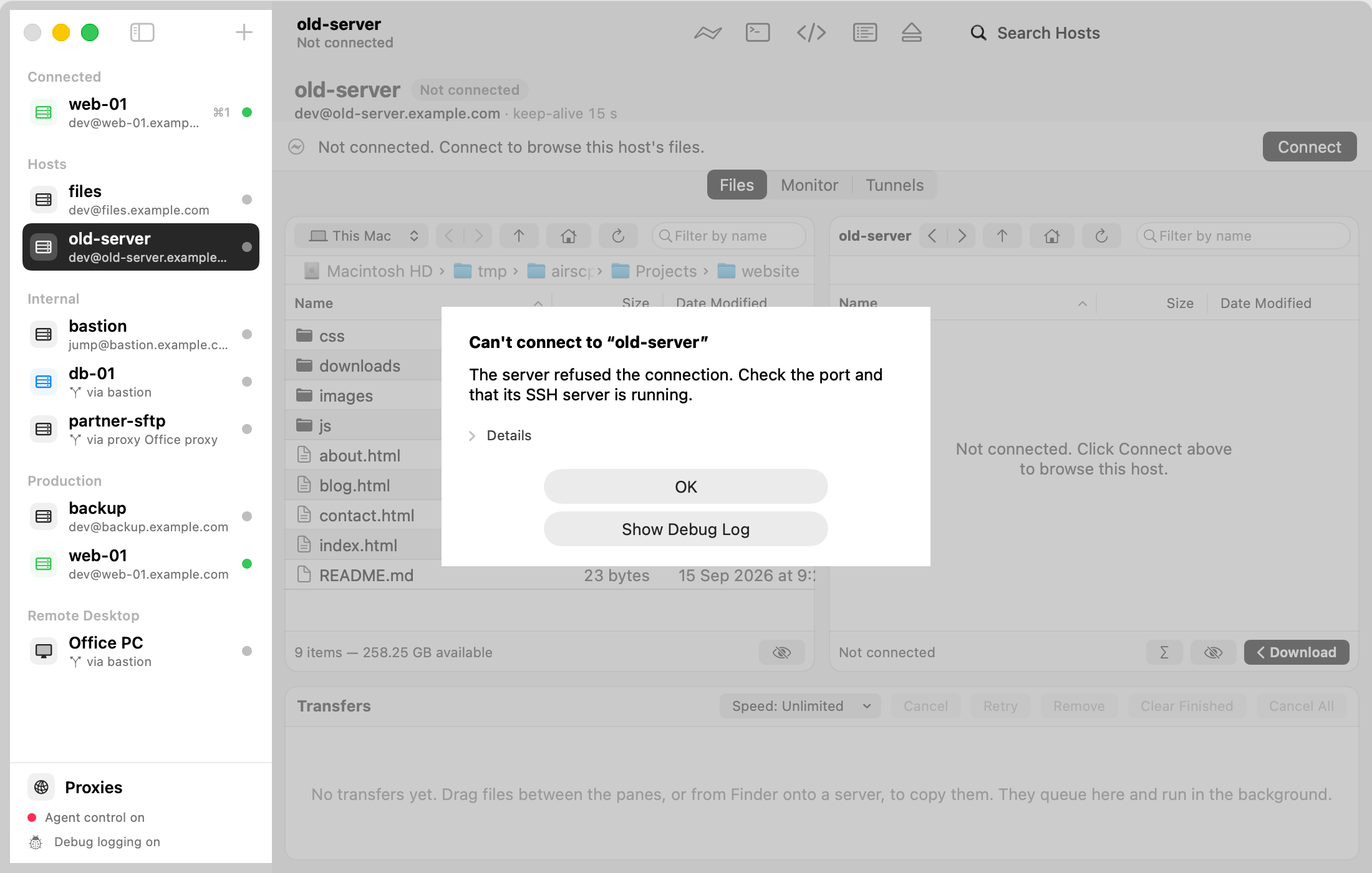
- Look for the line Couldn’t connect: it stopped at …. It names the step that failed: the HTTP proxy, the jump host, or the server.
- The log never holds passwords, passphrases or file contents. It stays on your Mac: AirSCP sends it nowhere.
- It keeps at most 10 MB, plus one older file (
AirSCP-debug.1.log).
macOS questions
- AirSCP wants to use your Keychain: AirSCP reads a saved password. Choose Always Allow. AirSCP waits for your answer.
- AirSCP would like to find devices on your local network: needed for servers and Windows computers on your network. Choose Allow. Changed your mind later? System Settings ▸ Privacy & Security ▸ Local Network.
- AirSCP wants to control iTerm: needed to open sessions in iTerm. Choose Allow.
Still stuck?
Choose Help ▸ Report a Problem. It opens a short form on GitHub with your AirSCP and macOS versions filled in. Attach the debug log. The command log (View ▸ Show Command Log) helps too: copy the failing line into the report, but remove anything private.