Save a Windows computer once. Then double-click it in the sidebar to open its desktop.
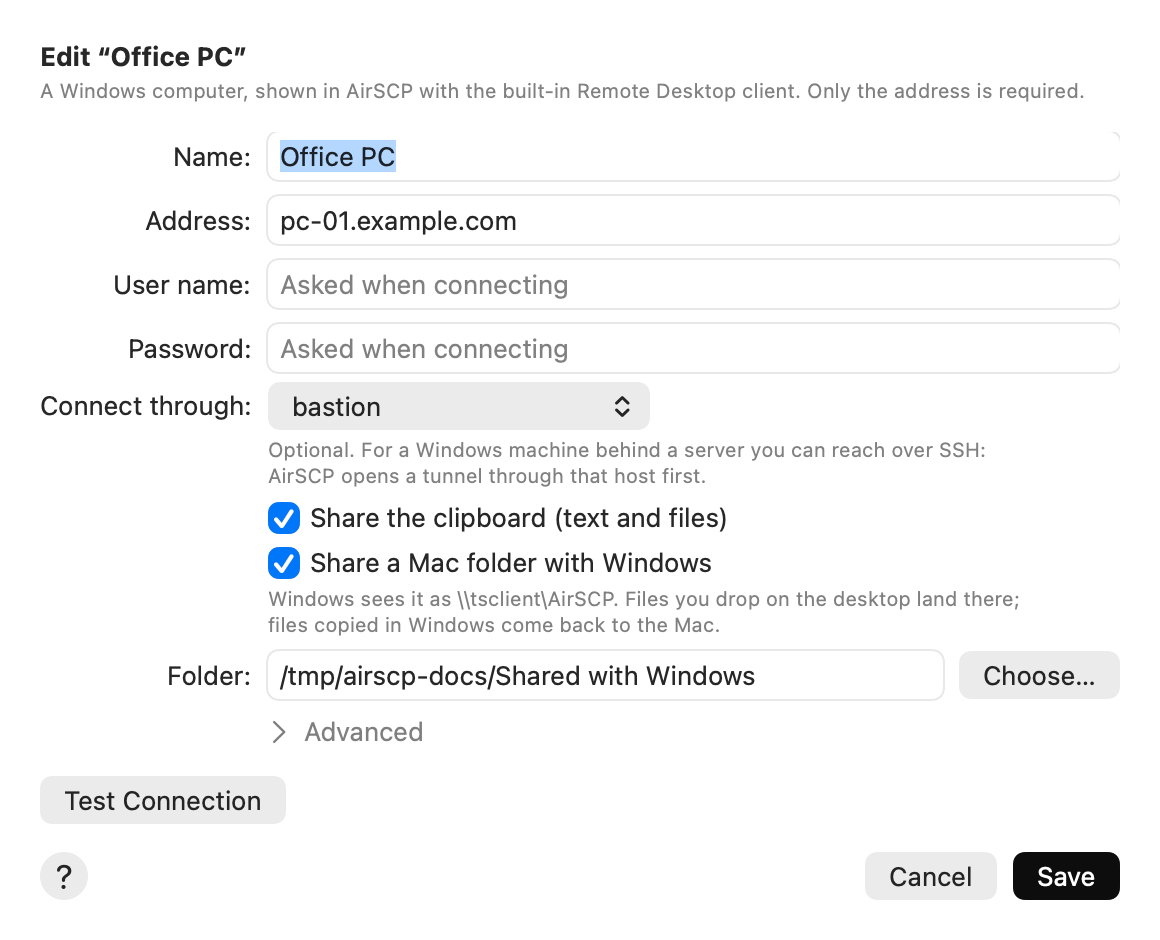
Choose File ▸ New Remote Desktop… (or click + in the toolbar). Type its Address . Only the address is required. Optional: User name and Password . Leave them empty to be asked when you connect. Optional: Connect through an SSH host, for a Windows computer you can only reach through a server. Click Add . Setting What it does Share the clipboard (text and files) Copy on one side, paste on the other. On by default. Share a Mac folder with Windows Windows sees the folder as \\tsclient\AirSCP. Files you drop on the desktop land there; files copied into it in Windows come back to the Mac. Folder The shared Mac folder. Empty: ~/Downloads/AirSCP RDP.
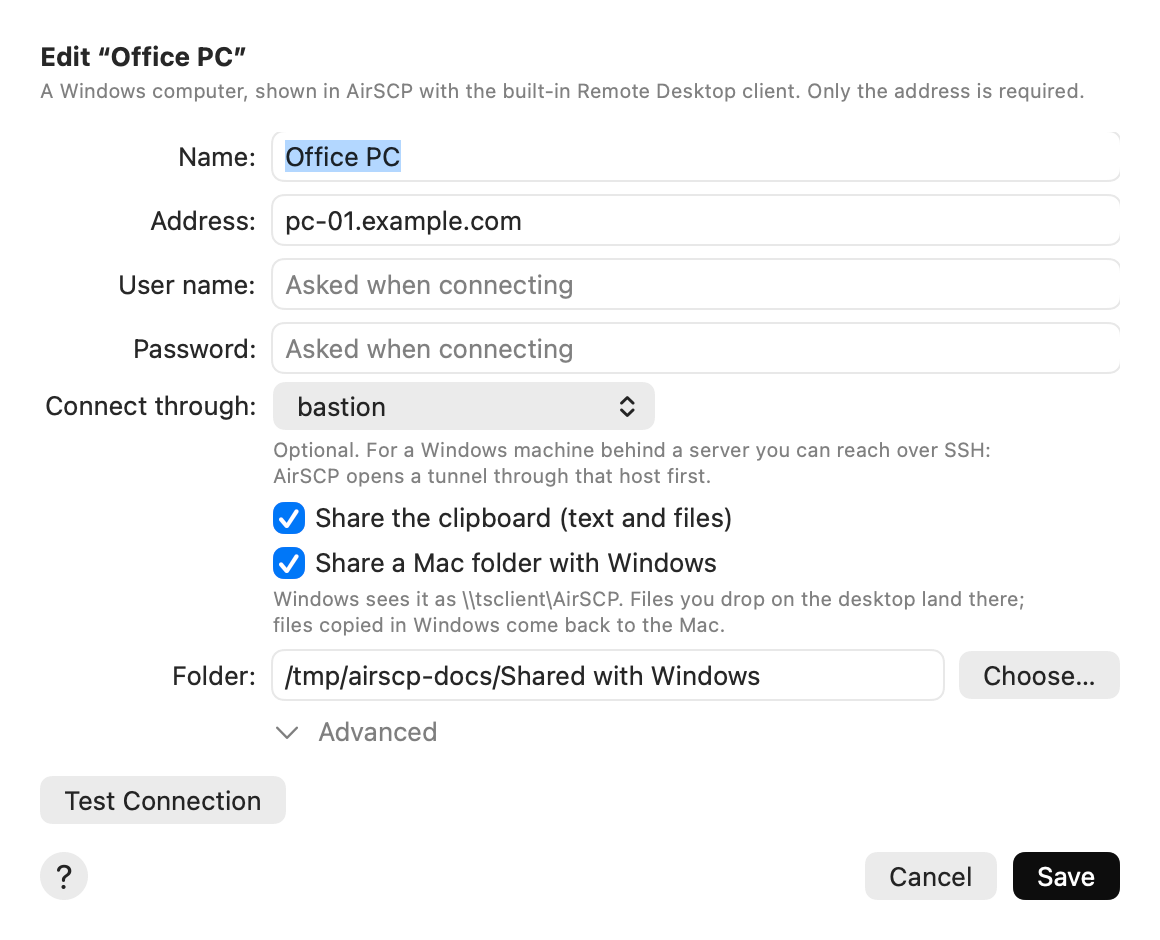
Setting What it does Port Empty: 3389, Remote Desktop’s usual port. Domain For a company (domain) account. You can also type DOMAIN\user as the user name. Display Fit the window (the desktop follows the window’s size), a fixed size, or Full screen . Retina resolution (sharp text) On a Retina screen, Windows gets the full resolution and scales to 200 %. ⌘ acts as Ctrl On by default: ⌘C copies in Windows. Off: ⌘ is the Windows key. Server certificate How AirSCP checks the computer’s certificate. See Self-signed certificates and corporate networks .
Test Connection checks that Windows answers and accepts the user name and password, without starting a session. With Connect through set, it connects that SSH host first; its questions (a password, a new server key) appear on the sheet.The ? button in the sheet opens this page.