Watch a Linux server
The Monitor tab shows what a Linux server is doing: CPU, memory, disks and processes. You can also stop a process.
Steps
- Connect to the server.
- Click the Monitor tab.
- Read the figures. They refresh every 3 seconds while the tab is on screen.
The top of the window shows the server’s CPU, memory and main disk on every tab, refreshed every 10 seconds. It isn’t there for servers that aren’t Linux.
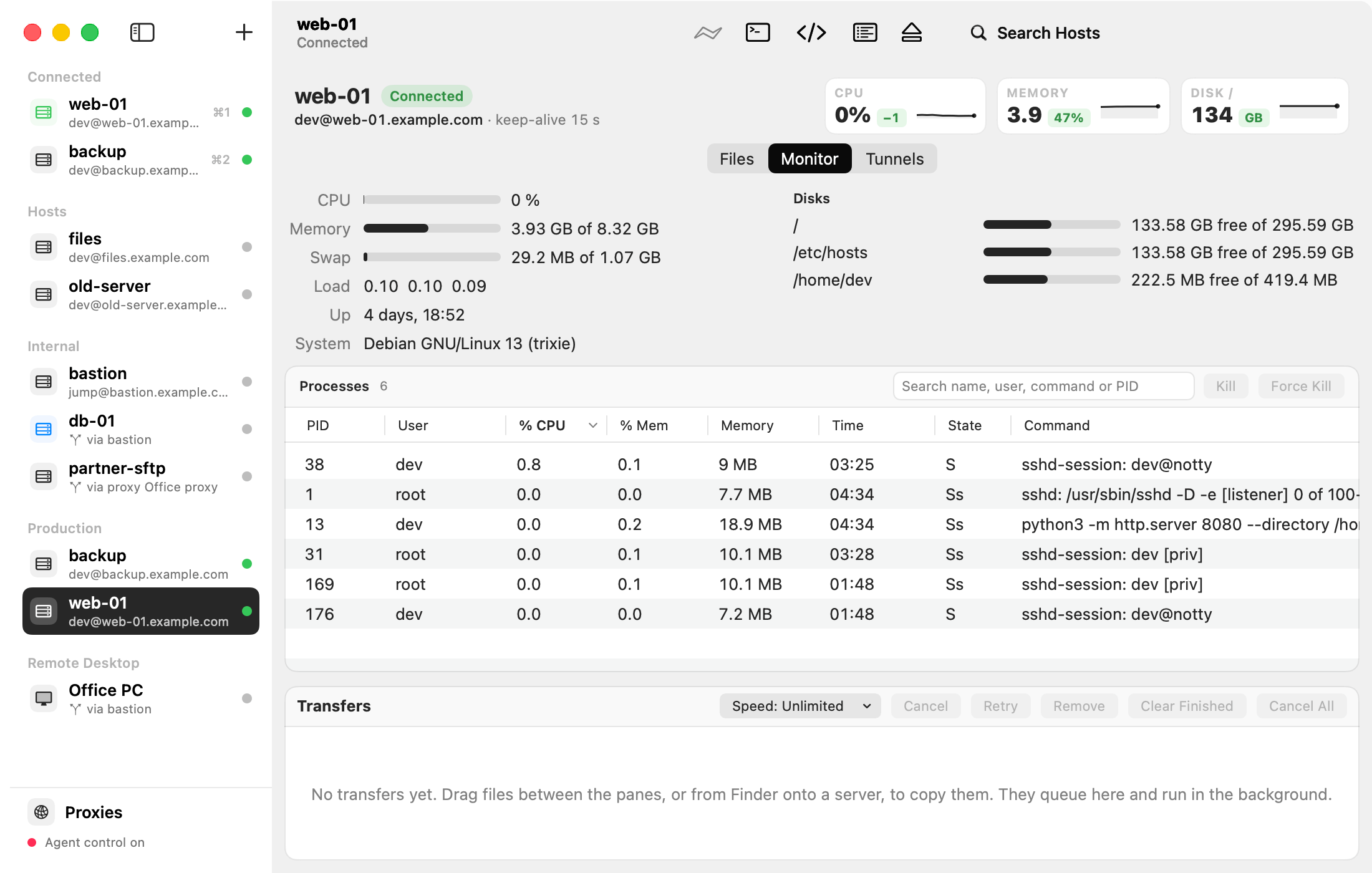
| Part | What it shows |
|---|---|
| CPU | How busy the processors are, since the last refresh. |
| Memory and Swap | Used and total. |
| Load | The load averages for 1, 5 and 15 minutes. |
| Up | How long the server has run since it started. |
| System | The server’s operating system. |
| Disks | Free space on each file system, with a bar. |
| Processes | Every process with its PID, user, CPU, memory, time, state and command. |
Stop a process
- Type its name, user, command or PID in the search field above the list.
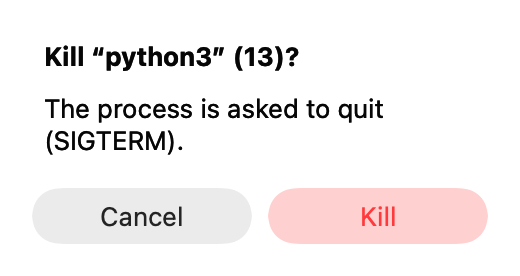
- Select it and click Kill (asks the process to quit) or Force Kill (stops it at once).
- AirSCP asks first. Click Kill again to confirm.
Tips
- Click a column heading to sort the processes, for example by CPU.
- Kill uses your account’s rights. When your account may not stop a process, AirSCP offers Kill with sudo in Terminal, where sudo can ask for your password (on servers that have sudo).
- The list of processes isn’t read while the tab isn’t shown. The figures at the top of the window still refresh every 10 seconds.
If something goes wrong
- “The system monitor works only on Linux servers”: macOS and BSD servers aren’t supported. The Files and Tunnels tabs work as usual.
- “This account allows file transfers (sftp) only”: AirSCP can’t read the system there. The Files tab works.
- On BusyBox systems (Alpine), processes show no CPU figure.