Browse and transfer
S3 storage works in the Files tab as a server does. This Mac is on the left, the storage on the right.
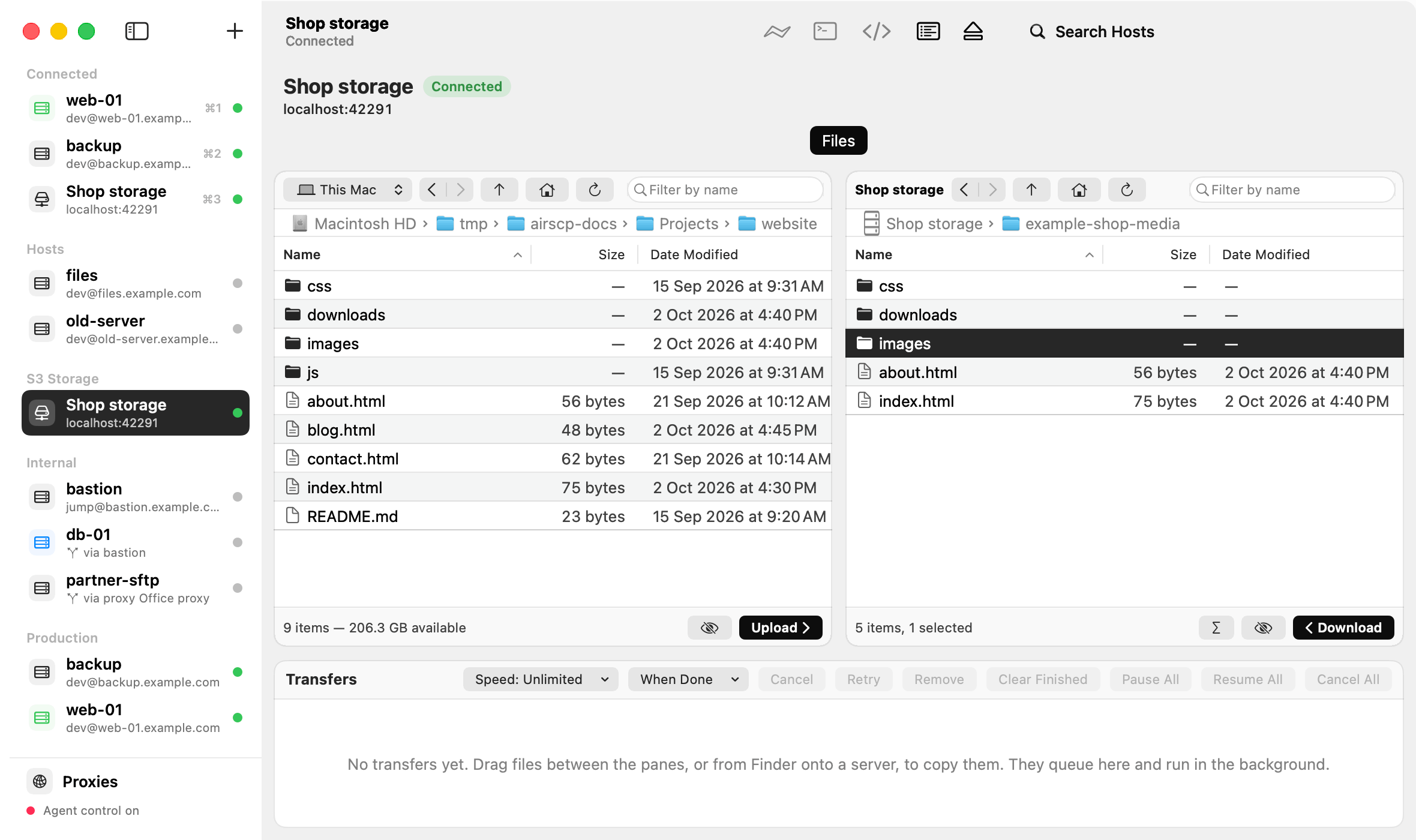
Steps
- Open a bucket or folder: double-click it.
- Upload: drag files or folders from the left pane or from Finder onto the right pane. Or select them on the left and click Upload.
- Download: drag items to the left pane or to Finder. Or select them and click Download, or choose File ▸ Download To….
- New folder: File ▸ New Folder…. New file: File ▸ New File….
- Rename, move, copy: File ▸ Rename…, File ▸ Move To…, File ▸ Copy To…. A folder moves with everything in it.
- Delete: select items and press ⌫. AirSCP asks first. A folder goes with everything in it.
- Edit a text file: File ▸ Edit in AirSCP. When you save, AirSCP checks that nobody changed the file meanwhile.
- Get Info: size, date, content type, storage class, ETag, the SHA-256 checksum the storage keeps, and the file’s metadata.
- Find Files…: search names below the folder you see.
- Synchronize…: make a Mac folder and a storage folder the same, by size and date. See Synchronize.
Copy a link
Right-click a file:
- Copy S3 Link copies its
s3://bucket/keyaddress, for tools such as the AWS command line. - Copy Presigned Link… makes an
httpslink that anyone can open without keys. Choose how long it works: an hour, a day, or 7 days (the longest S3 allows).
Copy between a server and S3
Choose a connected server in the left pane’s menu (where it says This Mac). Then drag items between the server and the storage. They go through your Mac.
Transfers
Every upload and download waits in the Transfers list. You can pause and resume it, cancel it, retry it and limit its speed, as for a server. See Pause and resume and Verify with checksums.
- Big files (from 64 MB) go in parts. A paused upload keeps the parts that arrived, and Resume sends only the rest.
- A paused download keeps what arrived, and Resume continues from there.
- Verify compares the file’s SHA-256 checksum on your Mac with the one the storage keeps. Storage that keeps no checksum for a file says so.
- A file appears on the storage only when it has arrived whole.
- In a folder you upload, a symbolic link to a file goes as that file. A link to a folder is left out, and the transfer names it.
Tips
- S3 has no real folders: a folder is the part of the names before a
/. A name AirSCP can’t show as a file (an empty name,.or..) is left out of the list. - A bucket in another Amazon S3 region works too: AirSCP finds its region.