Copy files to and from Windows
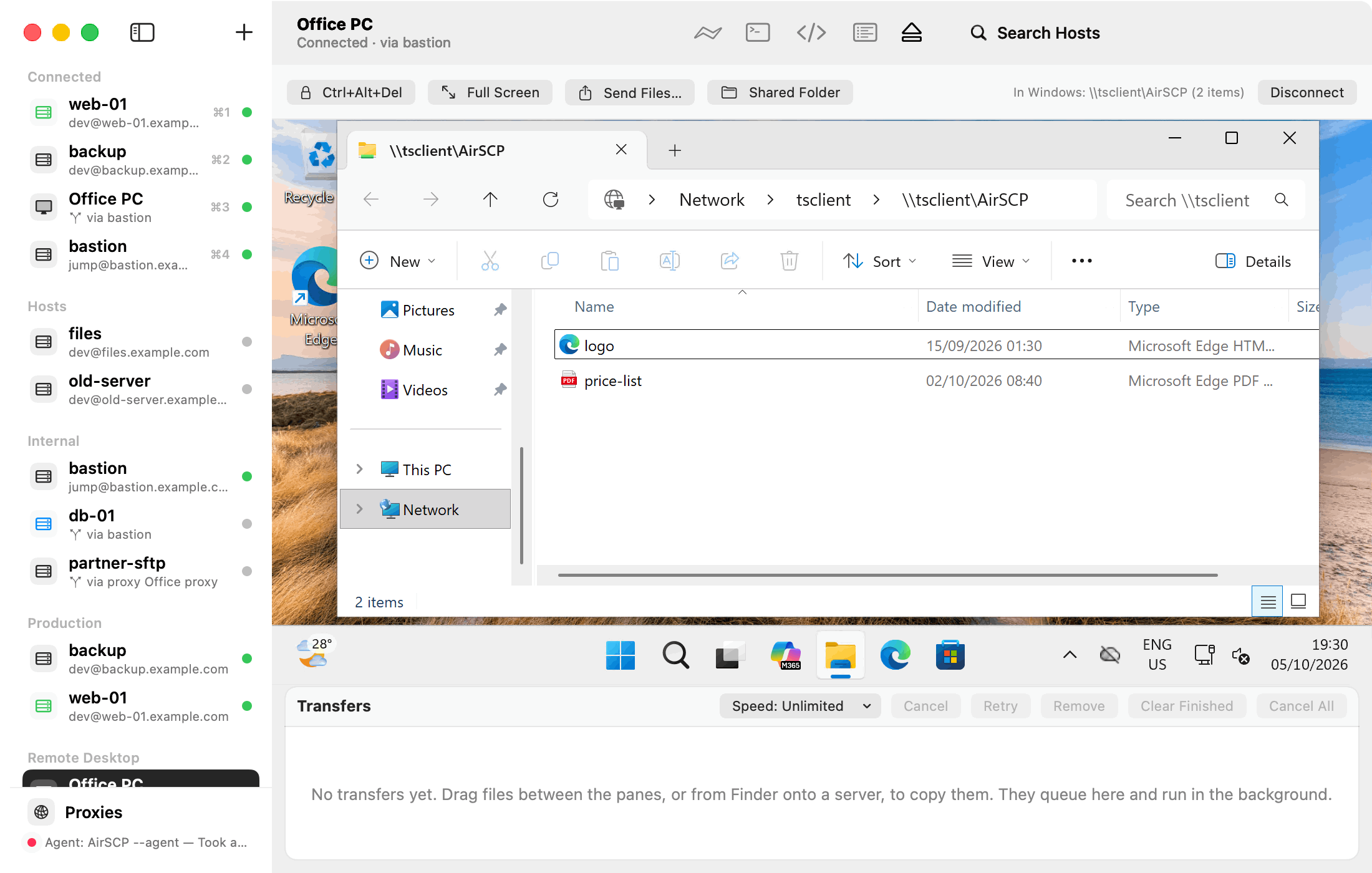
A Mac folder is shared with Windows, where it is \\tsclient\AirSCP. Files go both ways through it.
Steps
Mac to Windows
- Drop files from Finder onto the Windows desktop in AirSCP, or click Send Files… in the bar. They are copied into the shared folder. The bar says where: “In Windows:
\\tsclient\AirSCP\…”. - Or copy files in Finder and paste them in Windows Explorer (see Copy and paste).
Windows to Mac
- In Windows, copy files into
\\tsclient\AirSCP. They appear in the Mac folder. Shared Folder in the bar shows it in Finder. - Or copy files in Explorer and use Paste Items to Mac… in the bar.
Tips
- The shared folder is
~/Downloads/AirSCP RDPunless the desktop’s settings name another. - Names Windows can’t store get “_” for the characters it refuses.
- Copies from the Mac to Windows run at about 9 MB/s; from Windows to the Mac at about 1–1.5 MB/s. For big files from Windows, sftp to Windows’ own OpenSSH server is faster.
- Disconnecting while Windows copies into the shared folder asks first.