Copy files
Upload files from your Mac to a server, or download them from a server to your Mac.
Steps
Upload
- Open the target folder in the server pane (right).
- Drag files from the left pane, or from Finder, onto the server pane. Or select files in the left pane and click Upload.
Download
- Open the target folder in the left pane, this Mac.
- Drag files from the server pane to the left pane, or onto your Desktop or a Finder window. Or select them and click Download, or choose File ▸ Download To… to pick a folder.
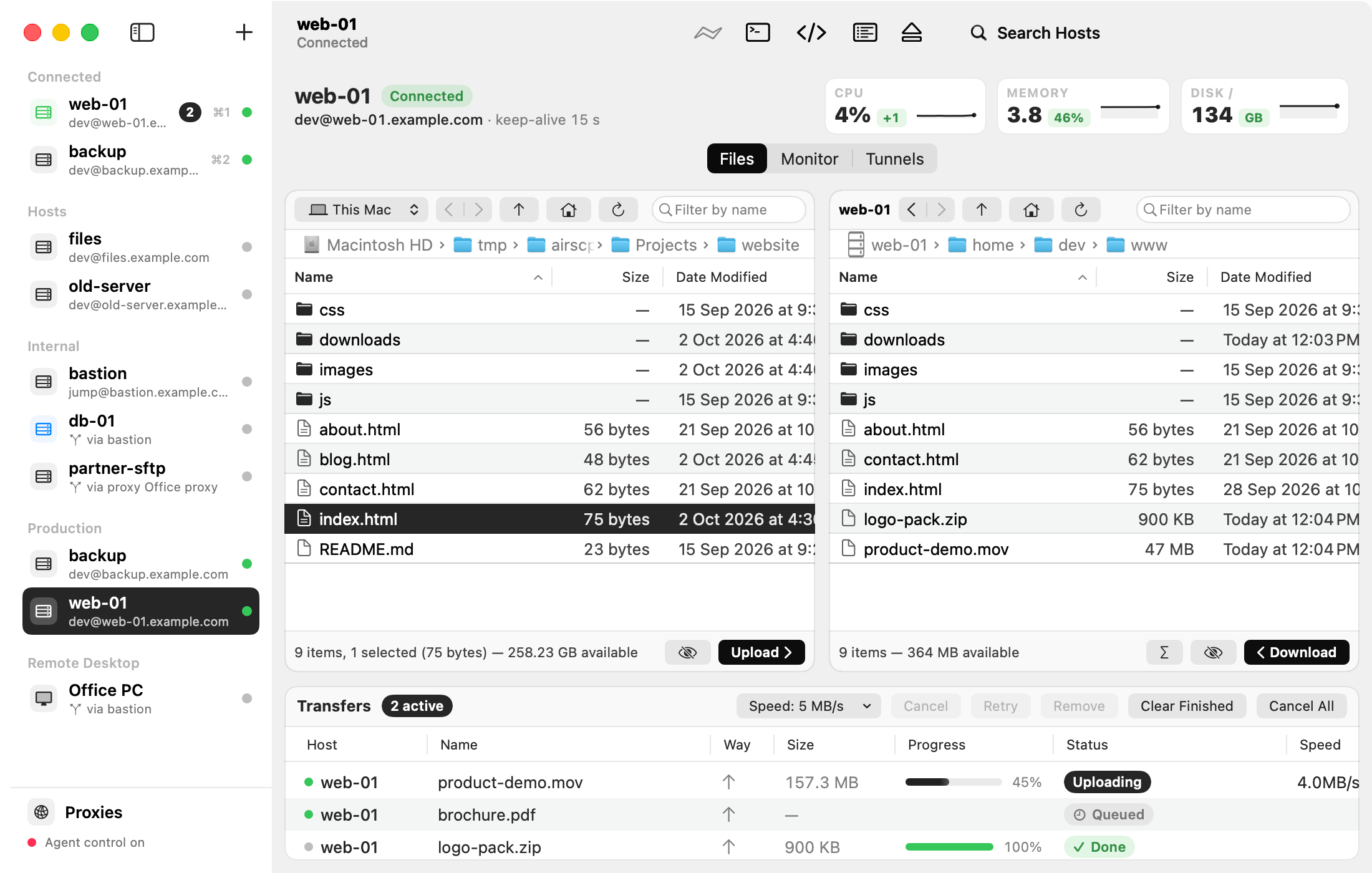
The copies run in the Transfers list. See Transfers and the queue.
Other ways
- File ▸ Copy to Other Pane copies the selection into the folder the other pane shows. Its name says where: “Upload to …”, “Download to …”.
- Edit ▸ Copy and Edit ▸ Paste. Files copied in Finder can be pasted into a server pane: they are uploaded.
- File ▸ Upload… chooses Mac files to upload.
- File ▸ Upload Compressed packs the selected Mac items into one stream and unpacks them on the server.
- File ▸ Download as .tar.gz…: see Download as one archive.
Within one server
- Dragging inside one server moves the items. Hold ⌥ to copy instead.
- Edit ▸ Cut and Edit ▸ Paste move too.
Tips
- Copies are safe: a file arrives under a temporary name and takes its real name only when it is complete. A cancelled copy never leaves a half file in place of the old one.
- A replaced server file keeps its permissions.
- Settings ▸ Copied files keep their original date keeps the files’ dates (off by default).