Connect to S3 or S3-compatible storage
Save your storage once, with its access key. Then double-click it in the sidebar to see its buckets.
Steps
- Choose File ▸ New S3 Connection…, or click + in the toolbar and choose New S3 Connection….
- Fill in the fields (see the table below).
- Click Test Connection to check the keys without saving (optional).
- Click Add. The connection appears in the sidebar under S3 Storage.
- Double-click it. Its buckets appear in the right pane.
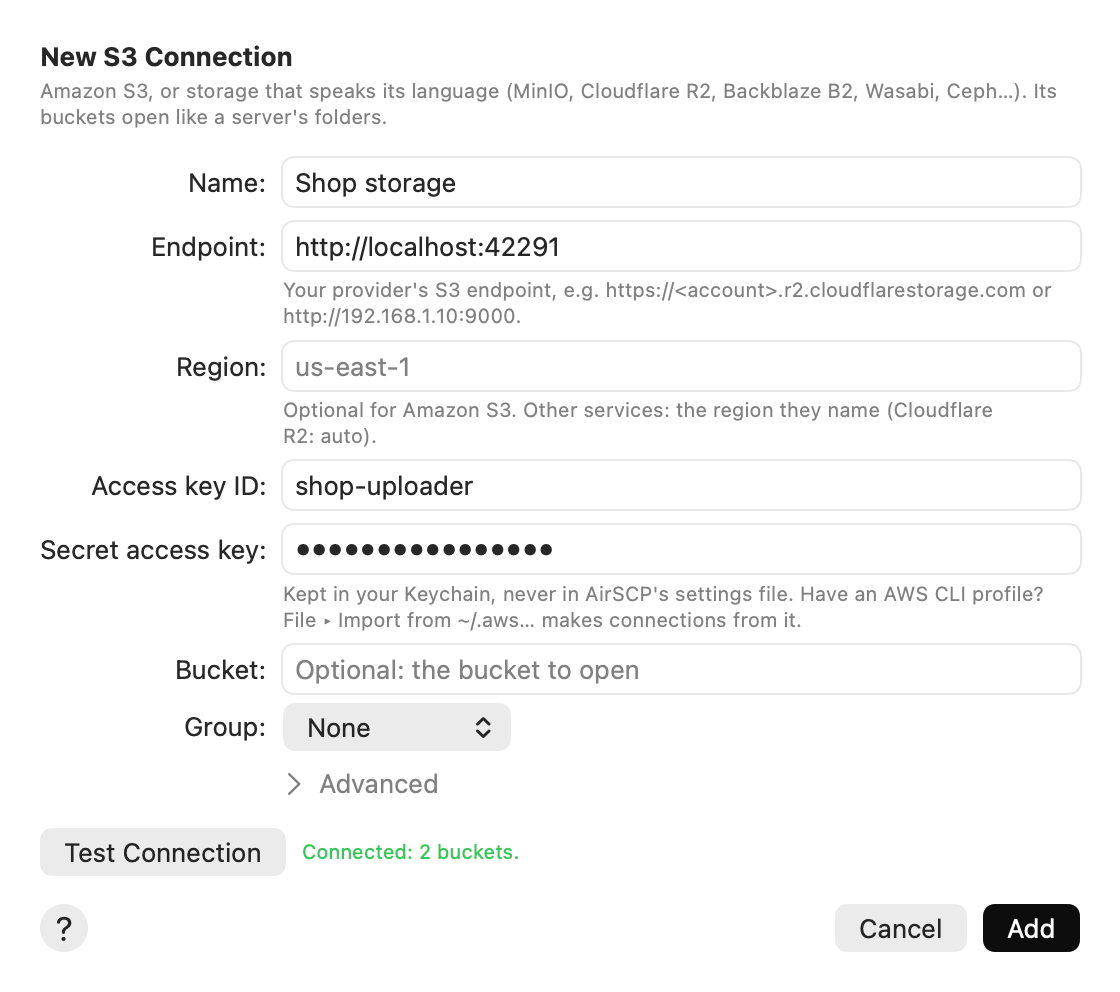
| Field | What to type |
|---|---|
| Name | A short name for the sidebar, for example Photos. Optional. |
| Endpoint | Leave it empty for Amazon S3. For other storage, the address your provider gives, for example https://<account>.r2.cloudflarestorage.com or http://192.168.1.10:9000. A plain http:// address works only with an IP address or a local name (nas, nas.local): macOS wants https:// for other names. |
| Region | Optional for Amazon S3: AirSCP finds each bucket’s region by itself. For other storage, the region they name (Cloudflare R2: auto). |
| Access key ID | The key’s ID from your provider’s console. |
| Secret access key | The key’s secret. It goes to your Keychain, never to AirSCP’s settings file. |
| Bucket | Optional. The bucket to open first. Needed when your key may not list the buckets. |
| Group | A group to sort the connection under in the sidebar. |
Advanced
| Setting | What it does |
|---|---|
| Path-style addresses | Puts the bucket in the address’s path (https://host/bucket) instead of the host name. Most self-hosted storage (MinIO, Ceph) wants it. An endpoint at an IP address always uses it. |
| Session token | Only for temporary keys. It goes to your Keychain. |
| Proxy | Only when your network reaches the internet through a proxy. See Connect through a proxy. |
Import from ~/.aws
Do you use the AWS command line tool? Choose File ▸ Import from ~/.aws…. AirSCP makes a connection for each profile that has its own access key, with its region and endpoint_url. The secret keys go to your Keychain; the files in ~/.aws stay as they are. The App Store version asks you to allow your .aws folder the first time.
Profiles that sign in with single sign-on (SSO), get their keys from a program (credential_process) or take on a role (role_arn) can’t be imported. AirSCP lists them with the reason. Make an access key for such an account, and add it with New S3 Connection….
Change, copy or delete a connection
- Host ▸ Edit… changes the selected connection.
- Host ▸ Duplicate makes a copy, with its keys.
- Host ▸ Delete… forgets the connection and its keys. The files on the storage stay.
- Host ▸ Copy Link copies the
s3://bucket/folder/link of the folder you see.
Tips
- “The secret key doesn’t match the access key”: edit the connection and type the secret key again.
- “This Mac’s clock is too far off”: turn on Set time and date automatically in System Settings ▸ General ▸ Date & Time. S3 refuses requests from a clock that is wrong by more than 15 minutes.
- “This access key may not list the buckets”: type the bucket’s name in Bucket.
- The ? button in the sheet opens this page.