Find your way around the window
AirSCP has one main window. Here is what each part does.
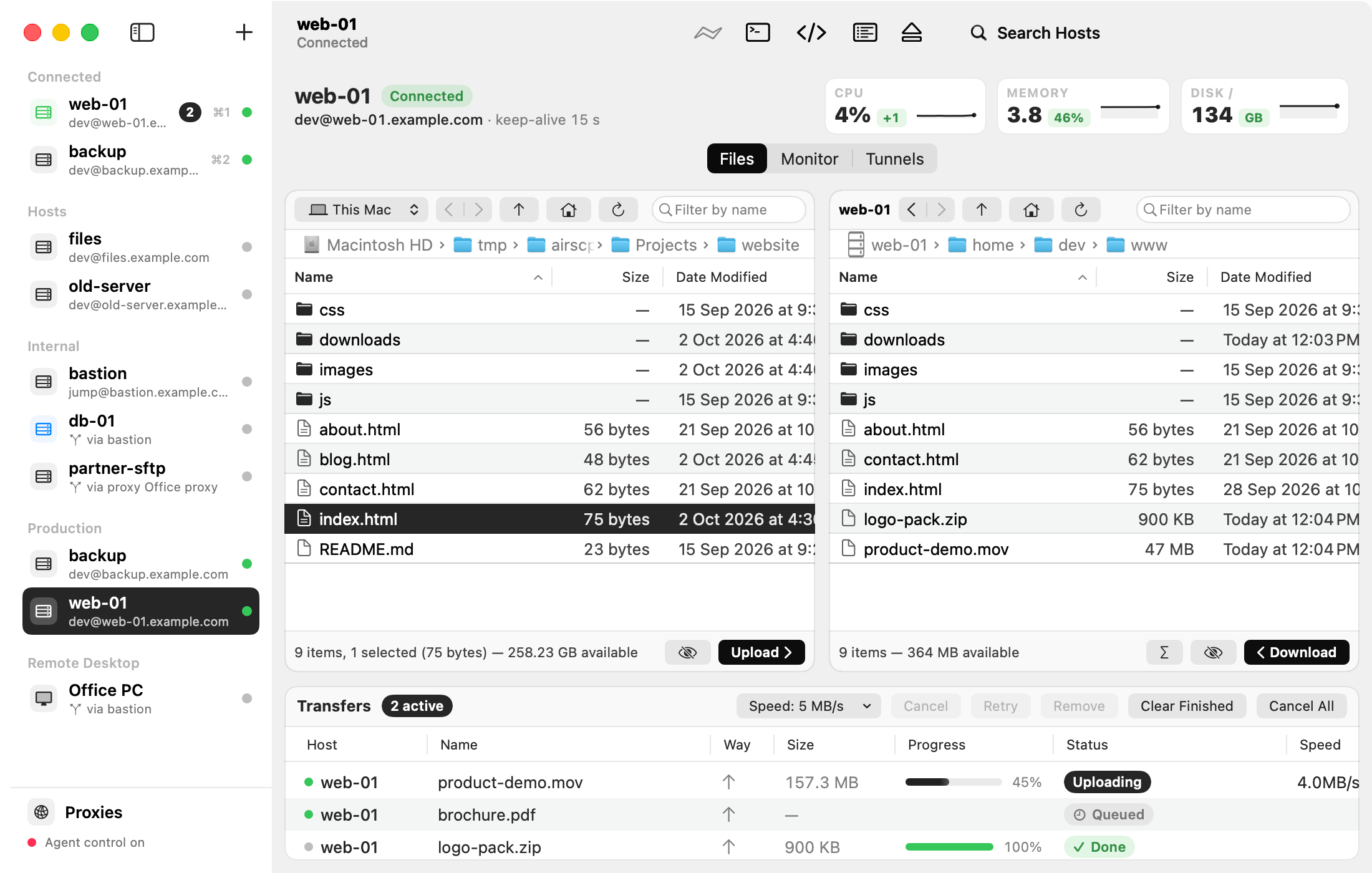
The sidebar (left)
- Connected: the servers and desktops that are connected now. ⌘1 to ⌘9 switch between them. A dot shows the state, and a number shows transfers that are waiting or running.
- Hosts, and your groups: all your saved servers. A server that goes through another server says so under its name, for example “via bastion”.
- Remote Desktop: your Windows computers.
- Proxies (at the bottom): HTTP proxies, if your network needs one. Most people need none.
The toolbar (top)
From left to right: + (add a host, a Remote Desktop or a group), Connect (⌘K), Open Terminal (⌘T), Run Command (⇧⌘R), Command Log (⌥⌘L), Disconnect (⌘E) and Search Hosts.
The top of a server
The server’s name and state (Connected, Not connected…), its user, address and port, the route through jump hosts and proxies, and its keep-alive. For a connected Linux server, three small boxes show its CPU, memory and disk at a glance; the Monitor tab has the details.
The tabs
- Files: two panes. The left pane is this Mac (or another server), the right pane is the selected server.
- Monitor: CPU, memory, disks and processes of a Linux server. See Monitor.
- Tunnels: port forwards through the connection. See Tunnels.
The Transfers list (bottom)
Every upload and download of every server. See Transfers and the queue. Hide it with View ▸ Hide Transfers.
Tips
- Every button and menu item explains itself. Hover over it for a moment.
- View ▸ Hide Sidebar (⌃⌘S) gives the files more room.
- Closing the window keeps your connections. Click AirSCP in the Dock, or press ⌘0, to bring it back.
- The Dock icon shows how many transfers are waiting or running.