Log in with a key
A key pair lets you log in without typing a password. The private key stays on your Mac; the public key goes on the server.
Steps
- Select the host and choose Host ▸ Edit….
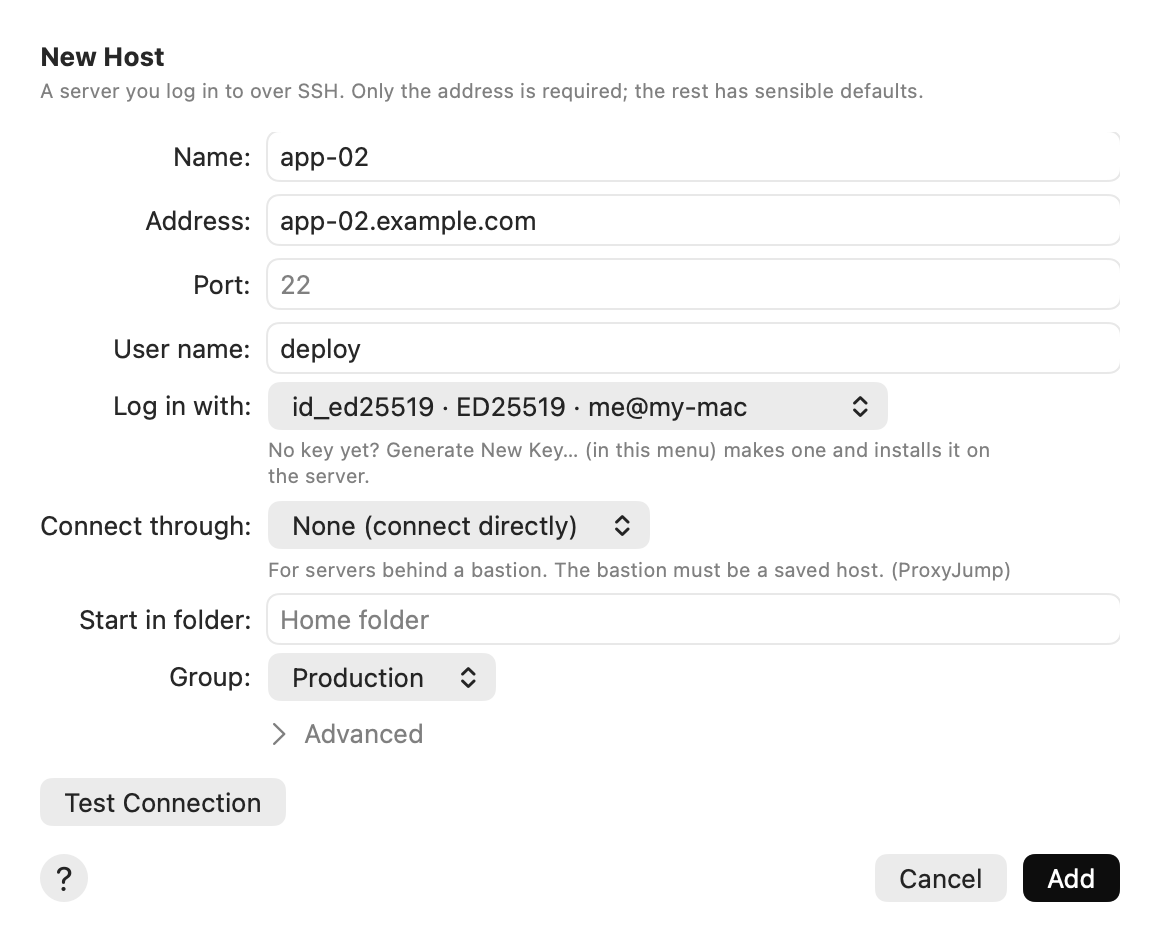
- Open Log in with and choose:
- Keys in ~/.ssh and the ssh agent (default): ssh tries your usual keys. Fine for most people.
- A key from the list: only that key is tried. Each one shows its name, type and comment.
- Choose a Key File…: a key that is somewhere else. A PuTTY key (
.ppk) is imported first. - Generate New Key…: makes a new key for this host. See Make a new key pair.
- Click Save, then connect.
Put the public key on the server
The server must know your public key. If it doesn’t yet, use Window ▸ Keys ▸ Install on Host…: AirSCP logs in once with your password and adds the key. See Put your key on a server.
Tips
- A key with a passphrase: AirSCP asks for it when connecting. Add to Agent in the Keys window can keep it in your Keychain, so you type it once.
- A key file that no longer exists shows in red as “(missing)”, and the host gets a warning in the sidebar.
- “Too many authentication failures”? Choose one key instead of the default, or add
IdentitiesOnly=yesin Extra ssh settings.