Synchronize two folders
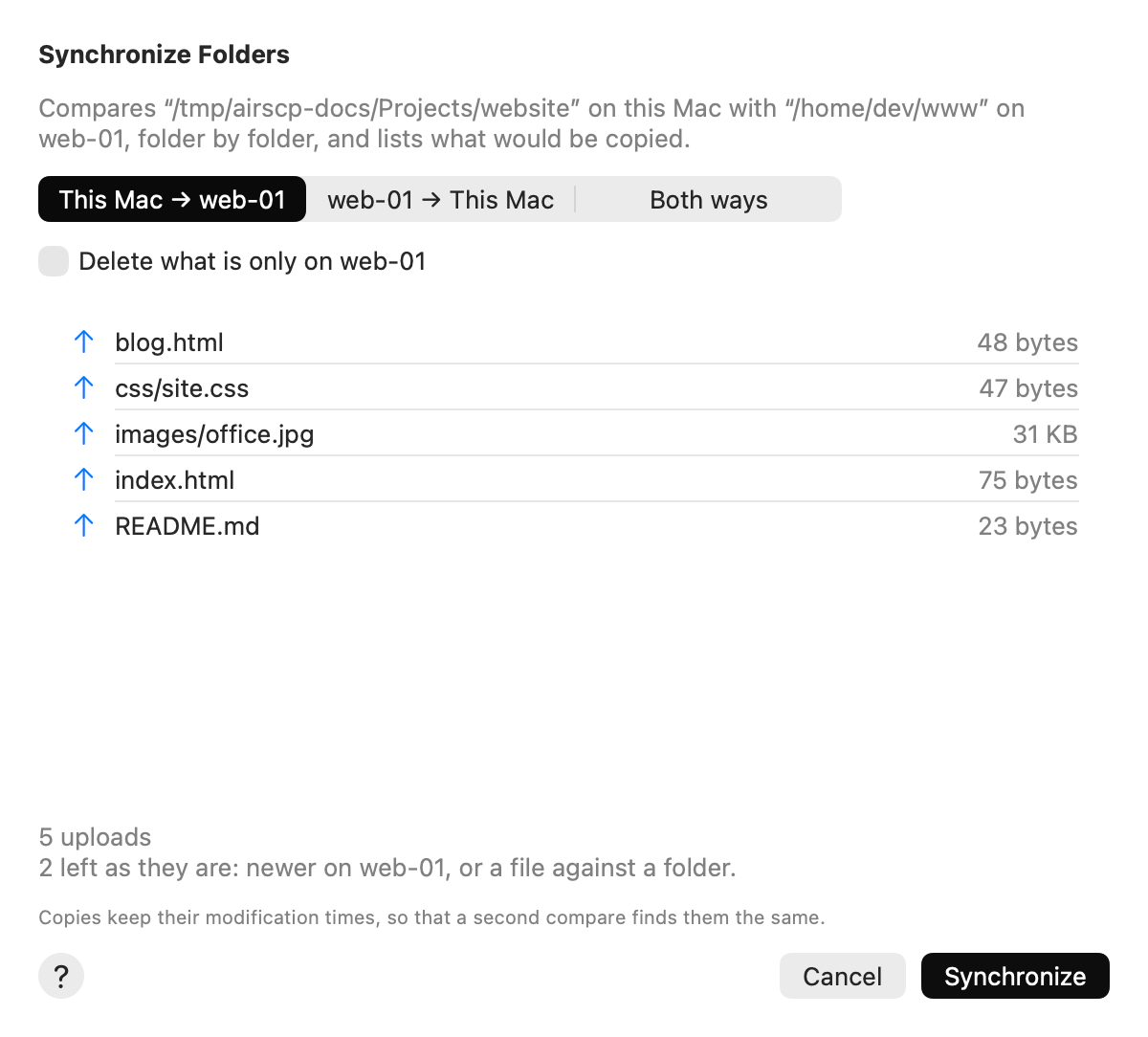
Make a folder on your Mac and a folder on a server the same. AirSCP compares them, with everything inside, and shows what it would copy. Nothing is copied until you click Synchronize.
Steps
- Connect to the server. Show the Mac folder in the left pane and the server folder in the right pane.
- Choose File ▸ Synchronize… (or right-click the folder).
- Choose the direction:
- This Mac → server: upload what is new or newer on the Mac.
- server → This Mac: download what is new or newer on the server.
- Both ways: copy the newer file each way, and what is missing on either side.
- Optional, one way only: tick Delete what is only on … to also delete what the other side doesn’t have. On a server it is deleted; on your Mac it goes to the Trash.
- Check the list, then click Synchronize. The copies run in the Transfers list.
How AirSCP compares
- Two files count as the same when their sizes and their modification times match. Times count to the minute, because that is what servers list. For files older than six months, servers list only the day. A server file dated after the server’s own clock also shows only its day: it counts as the newer file.
- The copies keep their modification times, so a second compare finds nothing to do.
- Some items are left as they are, and the sheet says how many. These are: files that are newer on the side being updated, a file on one side against a folder on the other, symbolic links,
.DS_Storefiles, and AirSCP’s own temporary.airscp-*items.
Tips
- When one of the folders is a home folder or
/, AirSCP waits for you to click Compare: comparing everything can take minutes. - 20 or more files of one folder go as one stream, which is faster.
- The ? button in the sheet opens this page.
If something goes wrong
- “Can’t list … Nothing was copied or deleted.”: a folder couldn’t be read (often permissions). Fix it, or leave it out, and compare again.
- Two versions with the same size saved within the same minute count as the same: the server lists times to the minute.