Use your PuTTY (.ppk) keys
Coming from Windows, PuTTY or WinSCP? Your keys are .ppk files. AirSCP turns them into keys that ssh on the Mac can use, and back. Nothing else needs to be installed.
Import a .ppk key
- Choose Window ▸ Keys and click Import Key… (or drop the
.ppkfile on the Keys window). - If the
.ppkfile has a passphrase, type it. - Check the Name of the new key. Keep the same passphrase, or choose a new one (empty for none).
- Click Import. The key appears in the list, ready to use.
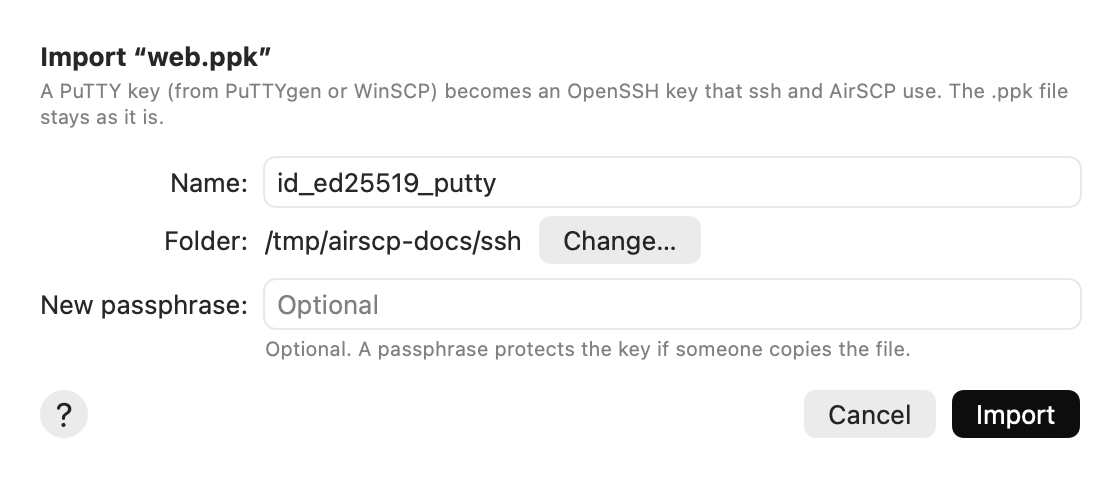
A host’s Log in with ▸ Choose a Key File… accepts a .ppk file too: it is imported first.
Export a key for PuTTY
- Select a key in the Keys window and click Export for PuTTY….
- Optional: a passphrase for the
.ppkfile. - Click Export… and choose where to save it.
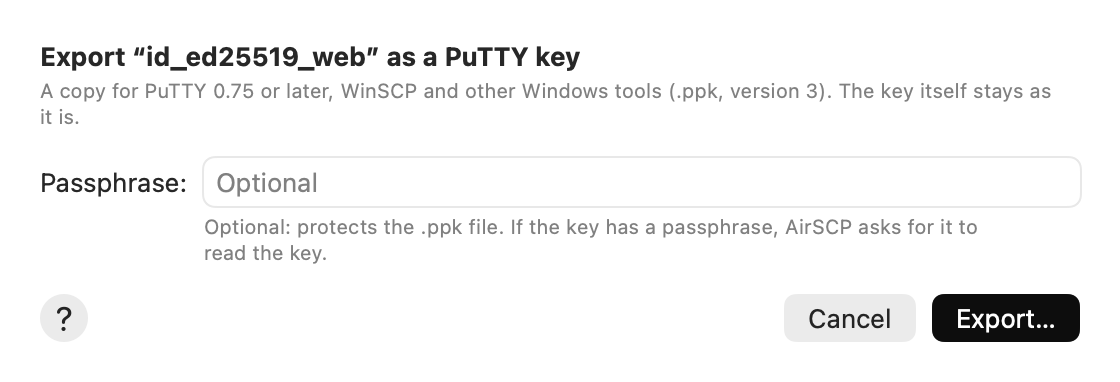
The .ppk file is in PuTTY’s key format version 3, which PuTTY 0.75 (2021) and later read. Update an older PuTTY to use it.
Tips
- RSA, ECDSA and Ed25519 keys work, encrypted or not. Import reads PPK version 2 and 3.
- The
.ppkfile and your key stay as they are: AirSCP writes new files and never overwrites one. - The unencrypted key exists only for a moment, in a private temporary folder that AirSCP wipes.
If something goes wrong
- A wrong passphrase or a damaged file is shown in red in the sheet. AirSCP checks the file’s integrity (its MAC) before using it.