Connect and log in
Steps
-
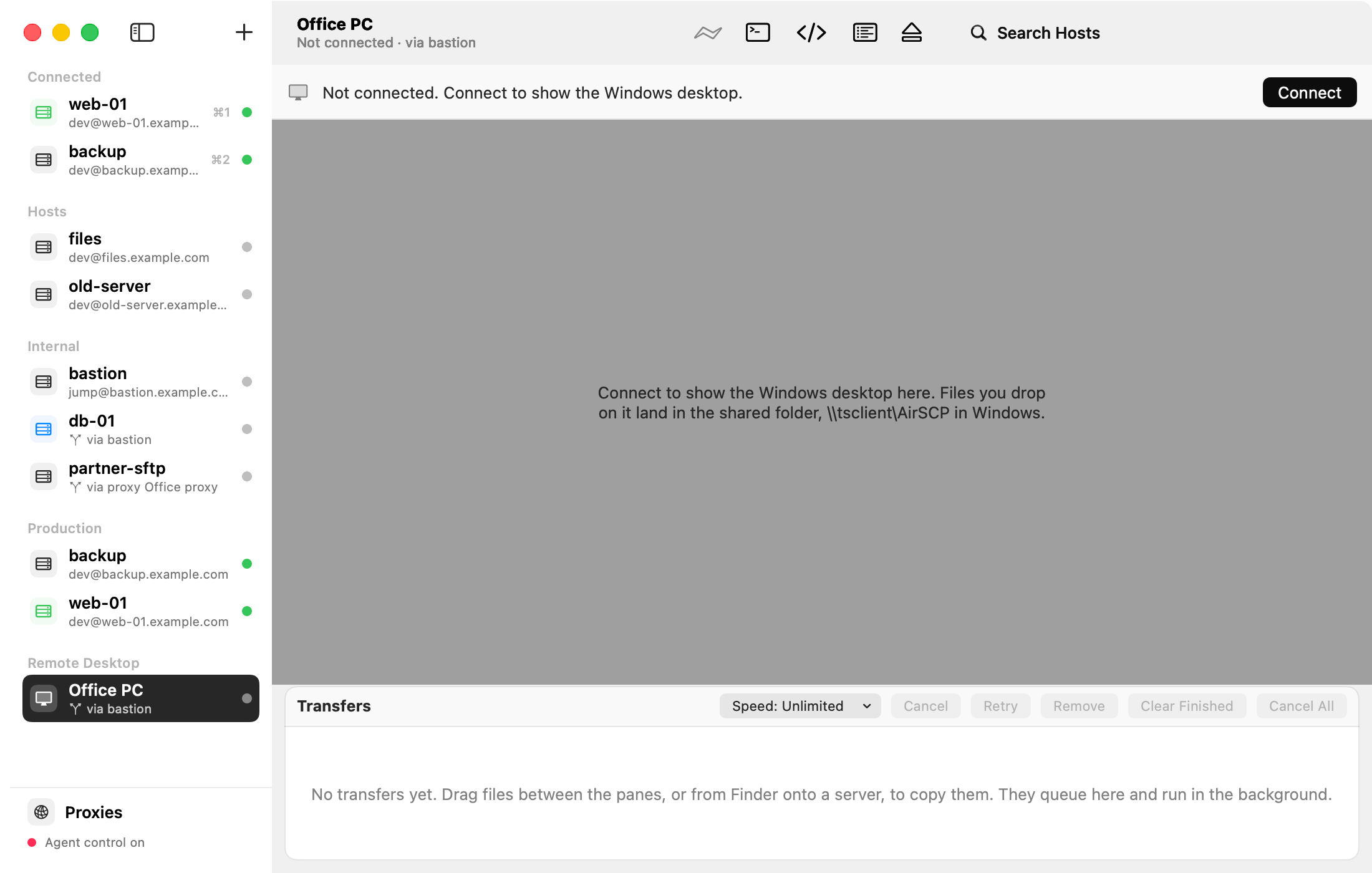
Double-click the computer in the sidebar (or select it and press ⌘K, or click Connect).
- The first time, AirSCP shows the computer’s certificate: who it was issued to, by whom, and its fingerprint. Click Always Trust to remember it, or Trust Once for this time only.
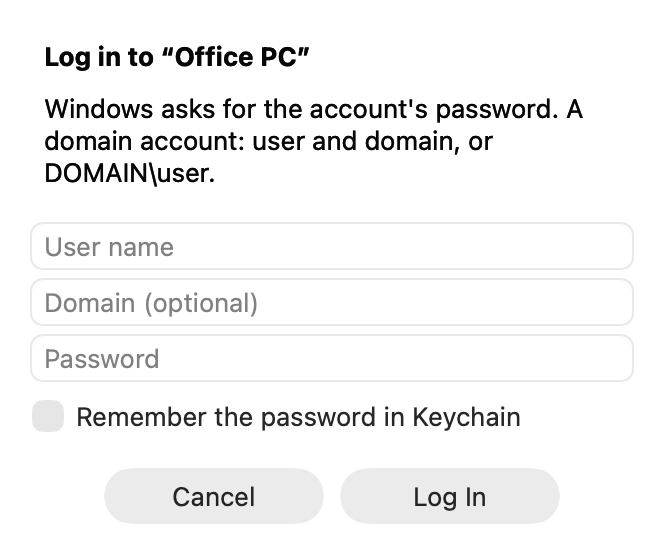
- If no password is saved, AirSCP asks: type the User name and Password (and the Domain for a company account). Tick Remember the password in Keychain to save it.
- Click Log In. The Windows desktop appears in AirSCP’s window.
To end the session, click Disconnect in the bar, or choose Host ▸ Disconnect (⌘E).
Tips
- Connected desktops stay connected while you look at a server. Switch with ⌘1 to ⌘9.
- A password typed with Remember is saved only after Windows has checked it.
- Through an SSH host, AirSCP connects that host first and opens a tunnel through it.
If something goes wrong
- “The user name or password is incorrect”: try again. A company account needs its domain (the Domain field, or
DOMAIN\user). - “AirSCP couldn’t reach the server”: check the address, that Remote Desktop is on in Windows, and your VPN. macOS may ask once whether AirSCP may find devices on your local network: choose Allow.
- “The certificate of … has changed”: someone may be in the middle of the connection, or the computer got a new certificate. Trust it only if you know why it changed.
- “The session was disconnected in Windows”: another login took it over. Reconnect to take it back.