Getting started
New to AirSCP? These four short pages take you from installing the app to copying your first files.
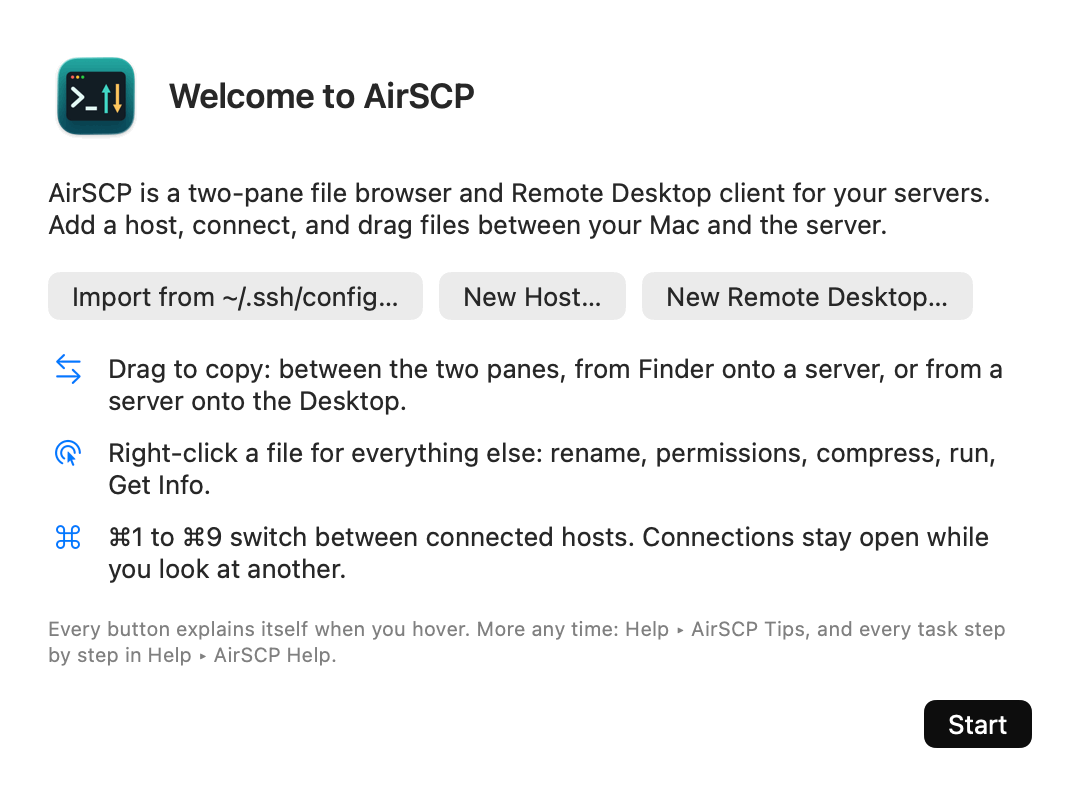
The first time you open AirSCP, a welcome sheet helps you start. You can open it again any time: Help ▸ Welcome to AirSCP….
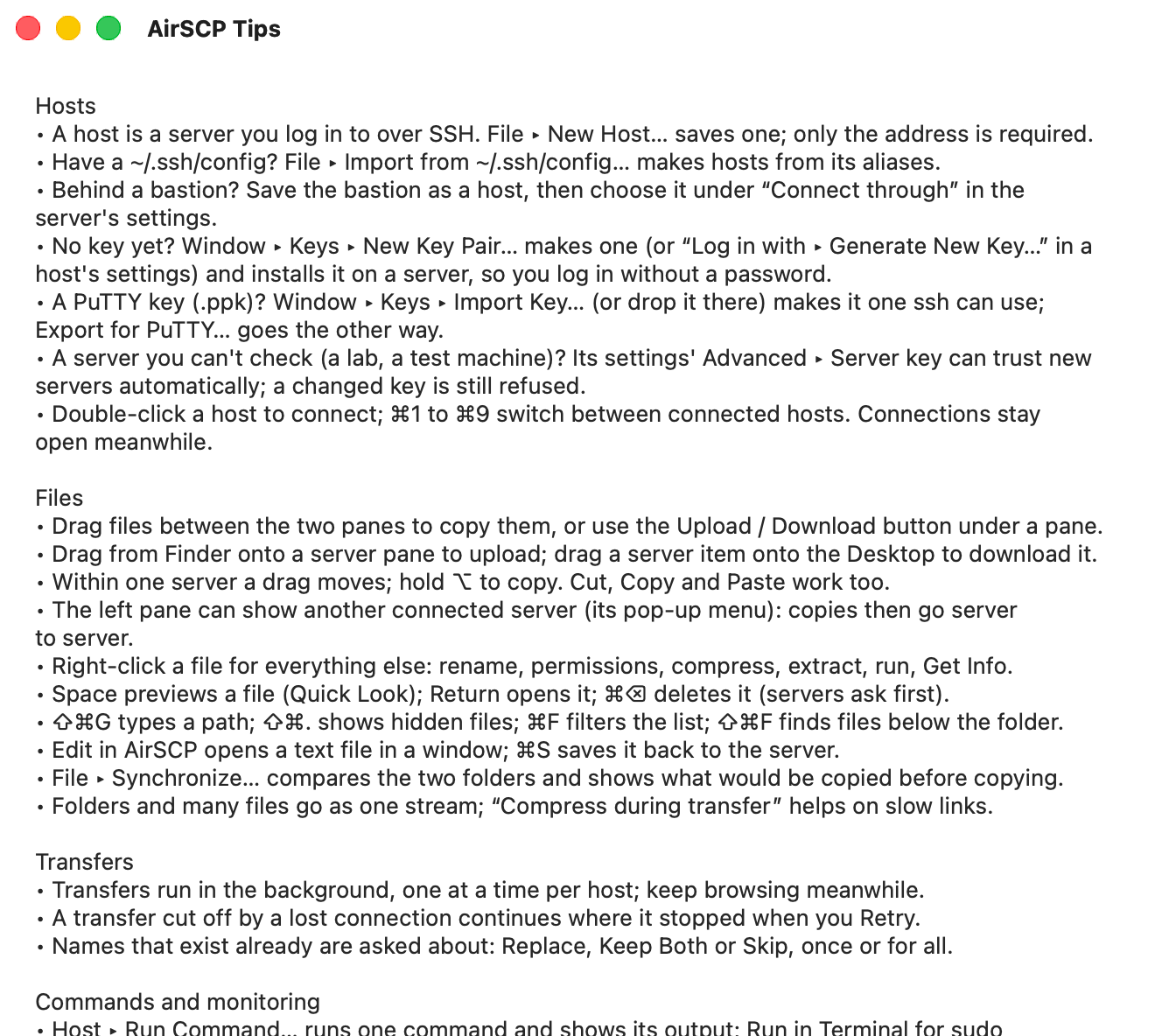
Short tips are always one click away, even without the internet: Help ▸ AirSCP Tips.
Words used in this help
- Host or server: a computer you log in to over SSH. AirSCP saves each one in the sidebar.
- This Mac: the files on your own Mac.
- Remote Desktop or desktop: a Windows computer you open in AirSCP’s window.
- Sheet: a small window that slides over AirSCP’s window and asks something.