Log in with a password
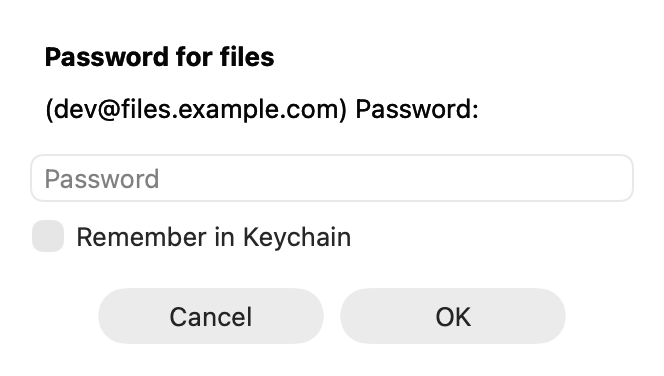
Some servers ask for a password, and some for a code from an app as well (two-factor). AirSCP asks these questions in its own window and names the host they are for.
Steps
- Select the host and choose Host ▸ Edit….
- Set Log in with to Password. You can type the password there, or leave it empty to be asked.
- Click Save, then connect.
- When AirSCP asks, type the password. Tick Remember in Keychain to save it.
Two-factor codes
If the server asks for a verification code after the key or password, AirSCP shows ssh’s question, for example Verification code:. Type the code from your authenticator app and click OK.
Tips
- A saved password is tried once, silently. If the server refuses it, AirSCP asks again.
- A question asked again says “That password wasn’t accepted”, so you know the first try failed.
- Passwords are saved in your Mac’s login Keychain, never in a file.
- With a key you don’t need a password at all. See Log in with a key.
If something goes wrong
- “The server didn’t accept the user name or password”: check the User name in the host’s settings, then try the password again.
- The question doesn’t come back after a wrong password: some servers close the connection after a few tries. Click Reconnect.