Stay connected
Wi-Fi drops, a Mac goes to sleep, a VPN restarts. AirSCP notices, connects again by itself, and continues your transfers.
What AirSCP does
- Keep-alive: every 15 seconds AirSCP checks that the connection still works. After 3 unanswered checks it counts as lost. Change the time per host: Host ▸ Edit… ▸ Advanced ▸ Keep-alive every.
- Reconnect automatically (on by default): when a connection drops, AirSCP tries again after 2, 5, 15 and 30 seconds, then every minute for up to 10 minutes. It also tries at once when the network comes back or the Mac wakes.
- Transfers continue: transfers that failed because the connection was lost run again after reconnecting. A single file continues where it stopped. See When the connection drops during a transfer.
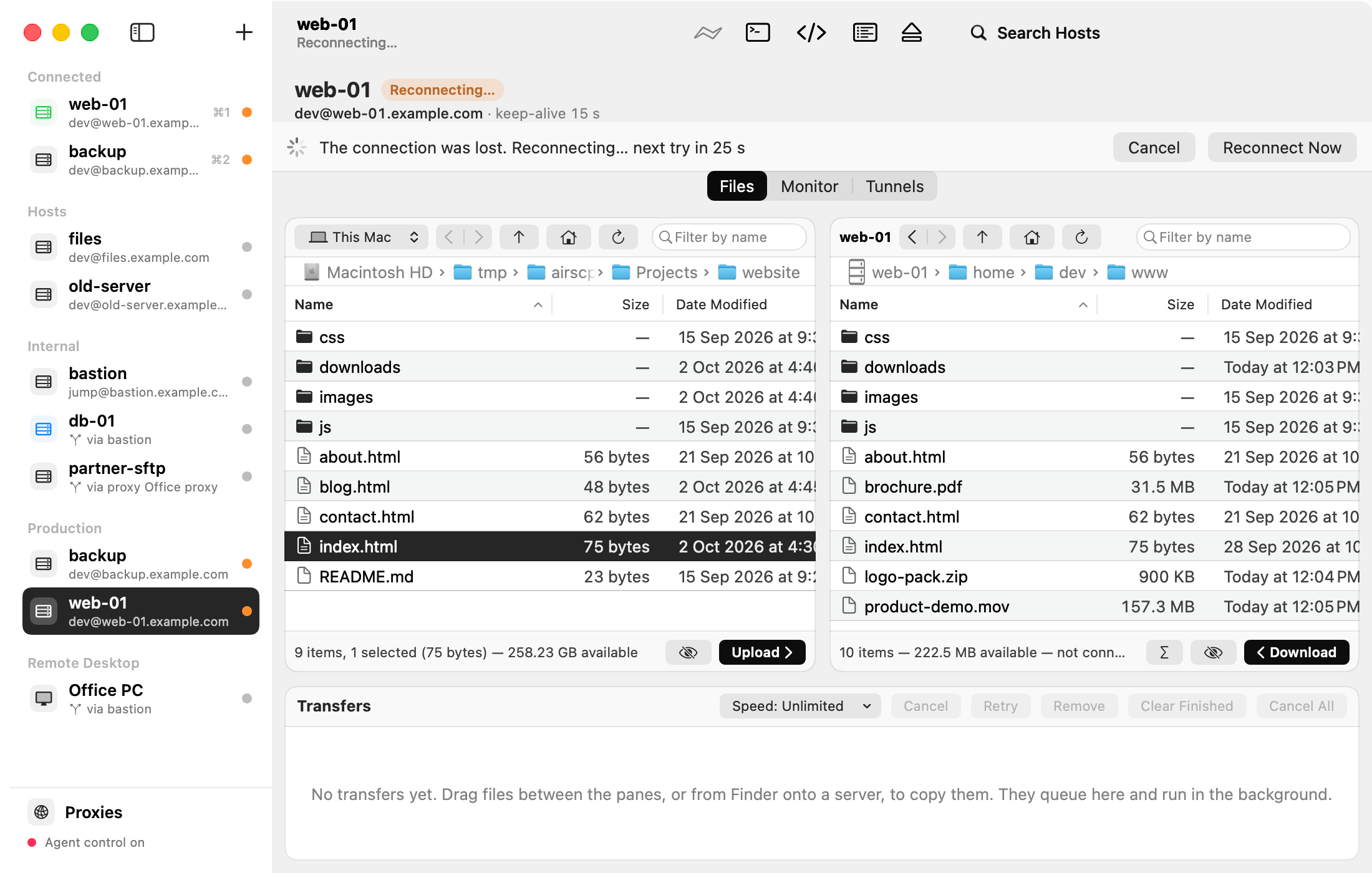
Steps
- To stop the tries, click Cancel in the banner.
- To try now, click Reconnect Now.
- To turn it off for one host, edit the host and untick Reconnect automatically.
Tips
- Reconnecting never asks you anything. If logging in needs an answer (a password that isn’t saved, a passphrase, a verification code, a new server key), AirSCP stops and shows Disconnected with a Reconnect button.
- Tunnels stay off after a reconnect. Switch them on again in the Tunnels tab.
- A connected host stays connected while you look at another host.