Create a certificate or request
Make a new key with a certificate request (CSR) to send to a certificate authority, or with a self-signed certificate for a test or internal server.
Steps
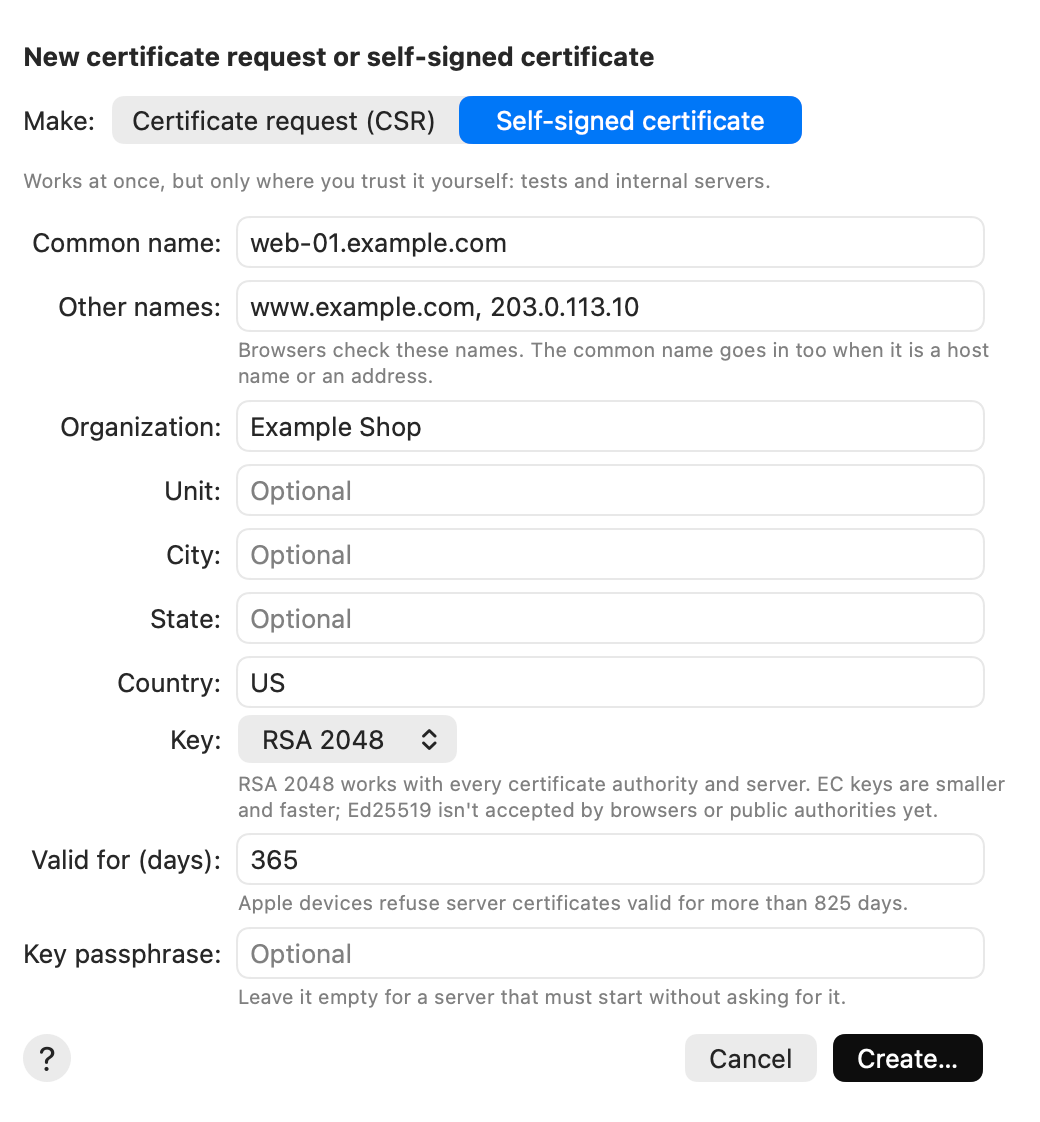
- Choose Tools ▸ Certificate Manager….
- Click New….
- Choose Certificate request (CSR) or Self-signed certificate.
- Type the Common name: usually the server’s host name, such as
web.example.com. - In Other names, type more host names and IP addresses, with commas between them. Optional.
- Fill in Organization, Unit, City, State and Country if your certificate authority wants them. Country is two letters, such as
US. - Choose the Key. RSA 2048 works everywhere.
- For a self-signed certificate, type how many days it is Valid for.
- Type a Key passphrase to encrypt the key file, or leave it empty.
- Click Create… and choose where to save. The key is saved beside it, as a
.keyfile.
The new request (or certificate) and its key appear in the list.
What a self-signed certificate has
- The common name and the other names, so browsers can check them.
- It is not a certificate authority: it can’t sign other certificates.
- It is for a TLS server: server authentication, and the key usages for it.
- A SHA-256 signature.
Tips
- Send the request (
.csr) to your certificate authority. Keep the.keyfile: the certificate they send back works only with it. Then open both and make a PKCS#12 or JKS file: see Convert and export. - AirSCP never saves over a file that is already there.
- Apple devices refuse server certificates valid for more than 825 days.
- The line at the bottom shows the
openssl reqcommand that makes the same files. It asks for the passphrase itself. Copy Command copies it.
If something goes wrong
- Create… is dimmed: hold the pointer over it. It says what is missing, such as the common name.
- “… isn’t a host name or an IP address”: Other names takes host names (letters, digits, hyphens and dots,
*.at the start for a wildcard) and IP addresses only. - “Nothing saved: … already exists”: a file with that name is in the folder already. Choose another name.