Add a server
A host is a server you log in to over SSH. Save it once, and AirSCP connects with one click. Only the address is required: the rest has sensible defaults.
Steps
- Choose File ▸ New Host… (⌘N), or click + in the toolbar and choose New Host….
- Fill in the fields you need (see the table below).
- Click Test Connection to log in once without saving (optional).
- Click Add.
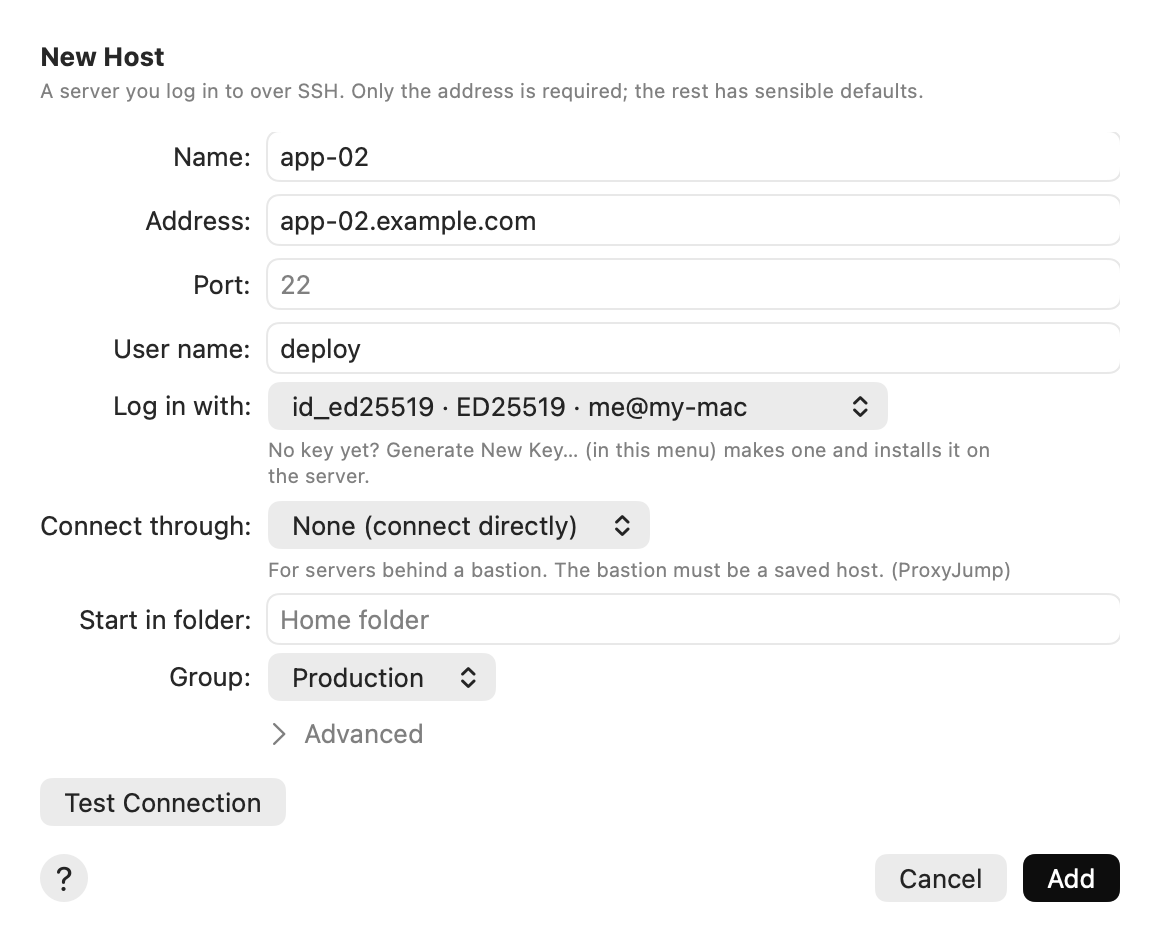
| Field | What to type |
|---|---|
| Name | A short name for the sidebar, for example web-01. Optional. |
| Address | The server’s host name or IP address. An alias from your ~/.ssh/config works too. |
| Port | Leave it empty for 22, the usual SSH port. |
| User name | Your account on the server. Empty: the same as on your Mac (or what your ssh config says). |
| Log in with | Your keys in ~/.ssh (the default), one key, a key file elsewhere, or Password. See Log in with a key and Log in with a password. |
| Connect through | Another saved host to go through first, for servers behind a bastion. See Connect through a jump host. |
| Start in folder | The folder to show after connecting. Empty: your home folder. |
| Group | A group to sort the host under in the sidebar. |
Advanced
Click Advanced for settings most people never change.
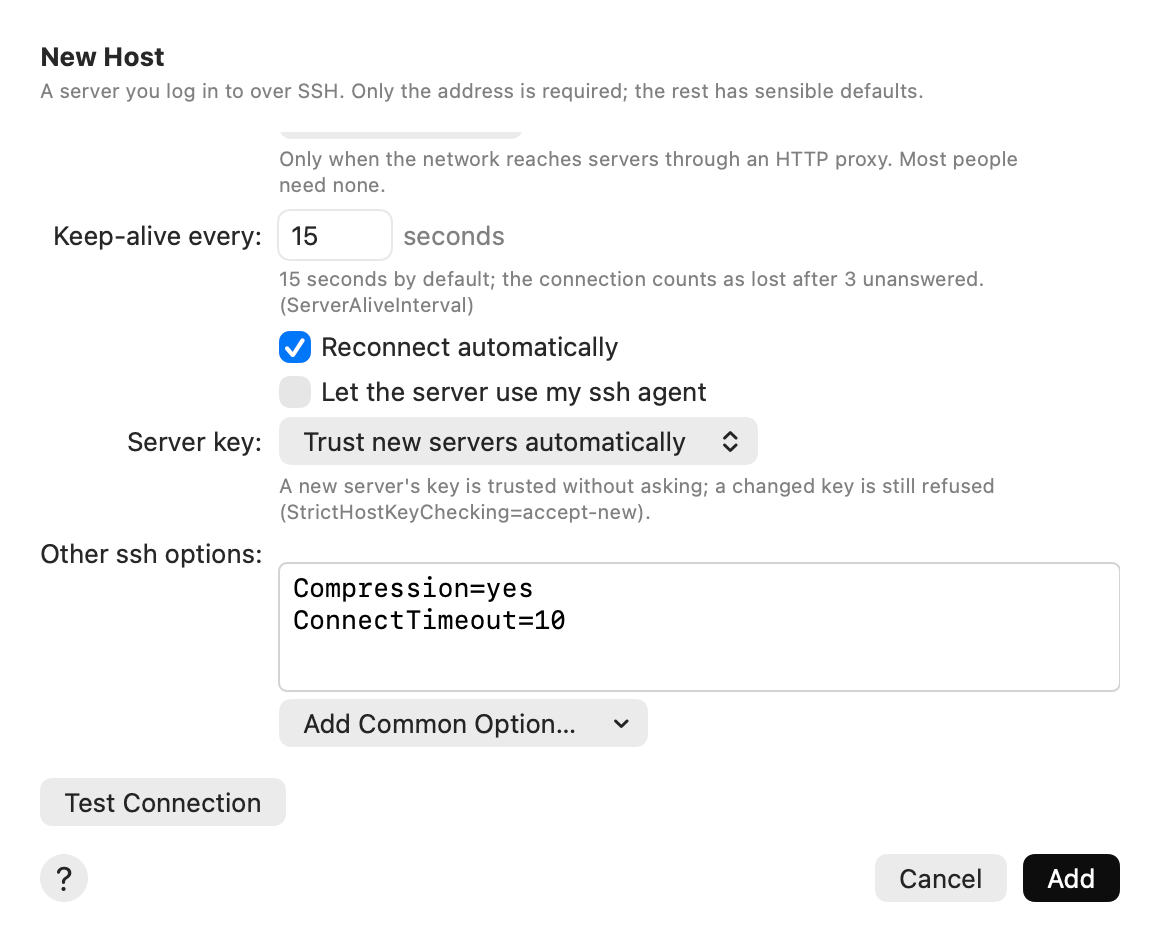
| Setting | What it does |
|---|---|
| HTTP proxy | Only when your network reaches servers through an HTTP proxy. See Connect through an HTTP proxy. |
| Keep-alive every | How often AirSCP checks that the connection still works: 15 seconds by default. The connection counts as lost after 3 unanswered checks. |
| Reconnect automatically | On by default. When the connection drops, AirSCP connects again by itself. See Stay connected. |
| Let the server use my ssh agent | Off by default. Turn it on only if you use your keys from that server to reach others (agent forwarding). |
| Server key | How AirSCP checks the server’s identity. Ask (default) is right for most people. See Self-signed certificates and corporate networks. |
| Other ssh options | Extra ssh settings, one per line. See Extra ssh settings. |
Change, copy or delete a host
- Host ▸ Edit… changes the selected host. A connected host uses the changes the next time it connects.
- Host ▸ Duplicate makes a copy, with its tunnels and saved password.
- Host ▸ Delete… forgets the host and its saved password. AirSCP asks first.
- Right-click a host in the sidebar for the same commands.
Tips
- The ? button in the sheet opens this page.
- Copy the ssh command for a host: Host ▸ Copy ssh Command (⇧⌘C). Paste it into any terminal.
- A host that other hosts or desktops go through can’t be deleted until they stop using it.